Get Started
SQL Queries in phpMyAdmin
Key Takeaways
phpMyAdmin simplifies database management. Access, view, edit, and run queries on your database securely through phpMyAdmin, optimizing your WordPress website efficiently.
Custom database prefixes enhance security. Changing default prefixes to unique strings adds a layer of protection to your database, requiring query modifications for proper execution.
Identifying database prefixes is crucial for query accuracy. Locate your database prefix in wp-config.php to ensure correct table targeting in SQL queries.
Modify SQL queries for custom prefixes. Replace default prefixes in queries with your custom prefix for accurate table referencing, ensuring query success.
At WP Engine, the easiest way to access and work with your database is through a tool called phpMyAdmin. phpMyAdmin makes it easy to securely view and edit data as well as run queries to update data in bulk. If you are looking to optimize your WordPress® website, you will likely need to perform several actions in phpMyAdmin.1
Access Database with phpMyAdmin
To easily view your website’s database with phpMyAdmin in the WP Engine User Portal:
- From the Sites page, select the environment name
- Click phpMyAdmin at the top right
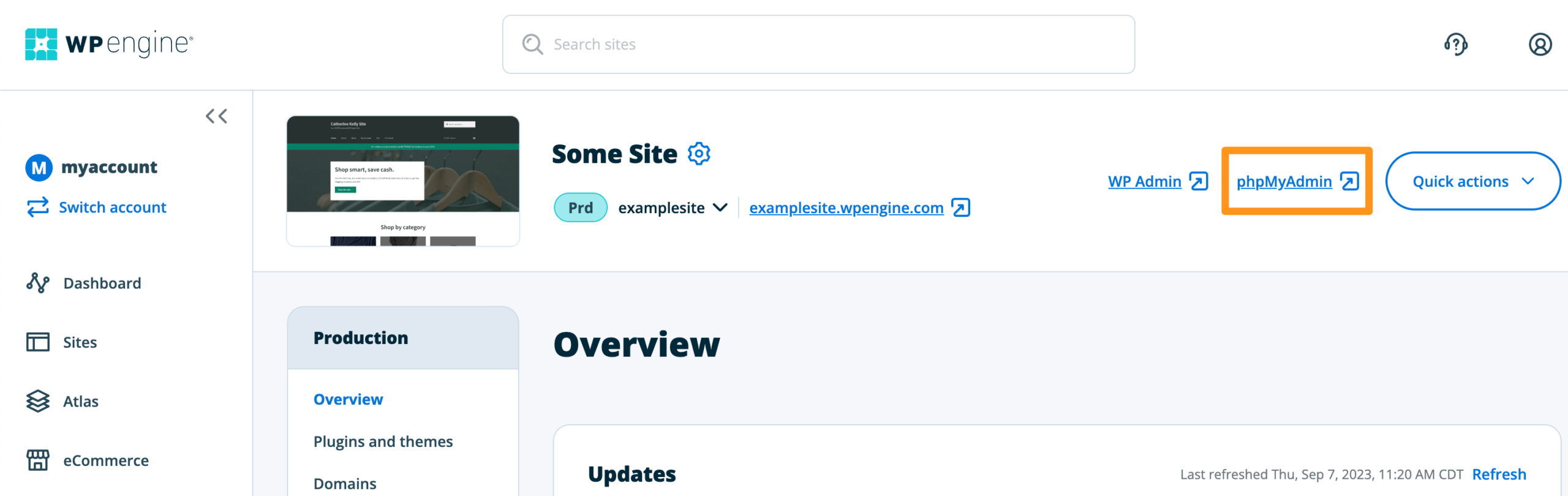
- A new tab will open and you will see the phpMyAdmin interface load
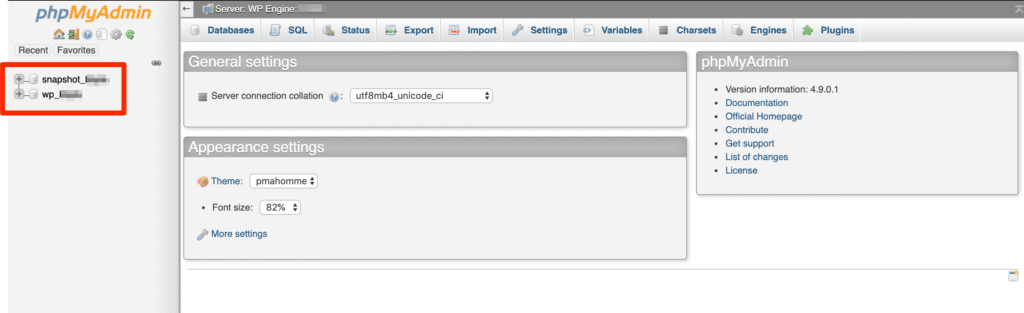
- Click on the database name in the far left column
wp_environmentname— The primary database for this environment
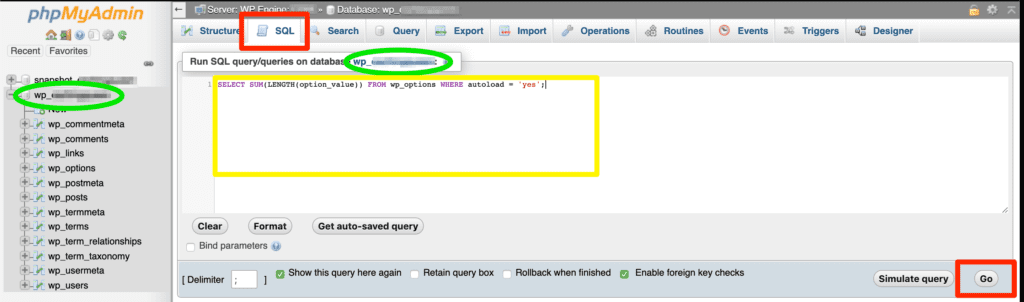
Run Query in phpMyAdmin
- Open phpMyAdmin
- Select the database you’d like to run a query on
- You must select a database from the left column first
- Select SQL
- Look for the database name again above the text field, confirm this is the correct database you intend to run a query on
- Write or paste your query in the text field
- Click GO
- Some queries will require a second confirmation in order to run.
Custom Database Prefix
Queries must be run in SQL and will most likely reference specific table names. Tables will not always be named the same thing from site to site, however.
Database prefixes can be changed for security reasons and may have been done so by a previous host if you migrated the site. Changing your database prefix means all of your tables are titled something new and are not using default titles. A custom prefix can be any string of random characters.
If you are running a query you must ensure you are taking into account if a custom database prefix is being used in order to properly run a query.
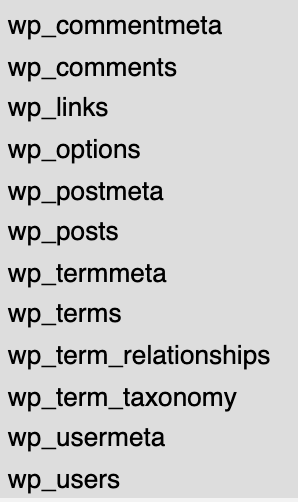
The default WordPress database prefix is wp_ and default tables are titled like this:
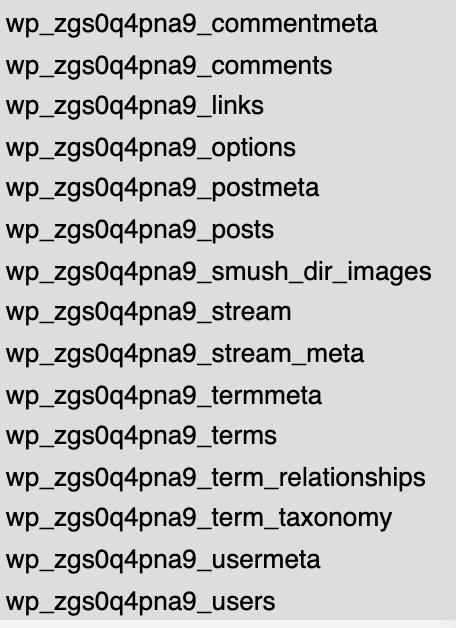
In this example, there is a custom prefix of wp_zgs0q4pna9_ and the table names look like this:
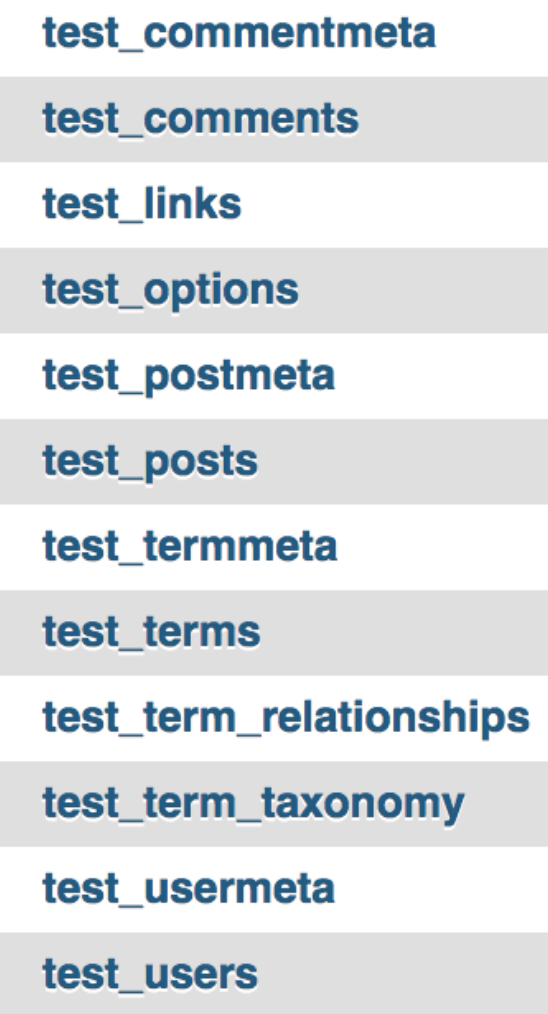
In this example, there is a custom prefix of test_ and the table names look like this:
Find the Database Prefix
If you cannot clearly distinguish your table names and prefix just from looking at your tables, you will need extra steps to locate which prefix (and subsequently, which tables) you are active.
- Connect to your site’s filesystem using SFTP
- Download the file wp-config.php from the root directory
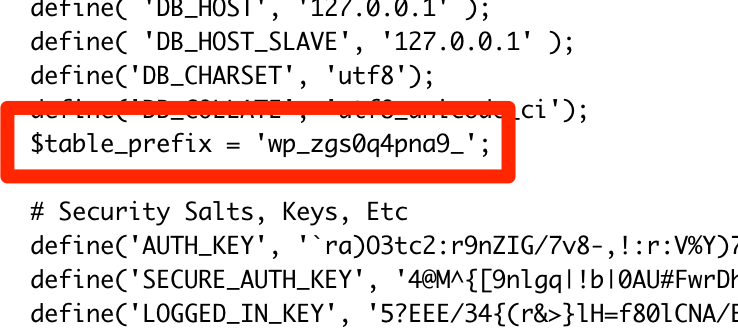
- Open this file and locate the line
$table_prefix - Your database prefix will be within the quotes
- In this example the prefix is
wp_zgs0q4pna9_
- In this example the prefix is
If you need to change your database prefix, check out our guide.
Run SQL Query with a Custom Database Prefix
You’ve found a SQL query you want to run but you’ve discovered you have a custom database prefix so the command doesn’t work correctly. You’ll need to slightly modify the SQL query to work on your site.
Wherever you see wp_ in a SQL query, just replace it with your prefix. This may be more than one location if the query interacts with multiple tables.
Example
For this example, we use the prefix: wp_zgs0q4pna9_
Default query example:
SELECT SUM(LENGTH(option_value)) FROM wp_options WHERE autoload = 'yes';
This command targets the table wp_options but we need it to target the wp_zgs0q4pna9_options table. Replace wp_ with your custom prefix for the command appropriate for this site.
Customized query:
SELECT SUM(LENGTH(option_value)) FROM wp_zgs0q4pna9_options WHERE autoload = 'yes';
NEXT STEP: Setup Remote Database Access