Get Started
Unexpected End of File Error
Key Takeaways
Unexpected End of File errors can lead to issues like the white screen of death or a 500 error, caused by missing closing tags in files.
Identifying and fixing the error involves restoring a backup or correcting the file directly, crucial for maintaining website functionality.
Restoring a backup is the quickest solution to revert to a stable state after an error, minimizing downtime and potential data loss.
Correcting the file by adding missing lines or sections ensures the code can be parsed correctly, resolving the error and restoring normal website functionality.
Unexpected End of File errors can occur when a file doesn’t have the proper closing tags. Sometimes this error can present itself as the white screen of death, or a 500 error. In this article we will explain what causes the “Unexpected End of File” errors, and how to resolve them.
About Unexpected End of File Errors
If a recently edited file contains a syntax error that abruptly ends the file, an error similar to the following may display:
PHP Parse error: syntax error, unexpected end of file in /nas/content/live/yourenvironment/wp-config.php on line 116

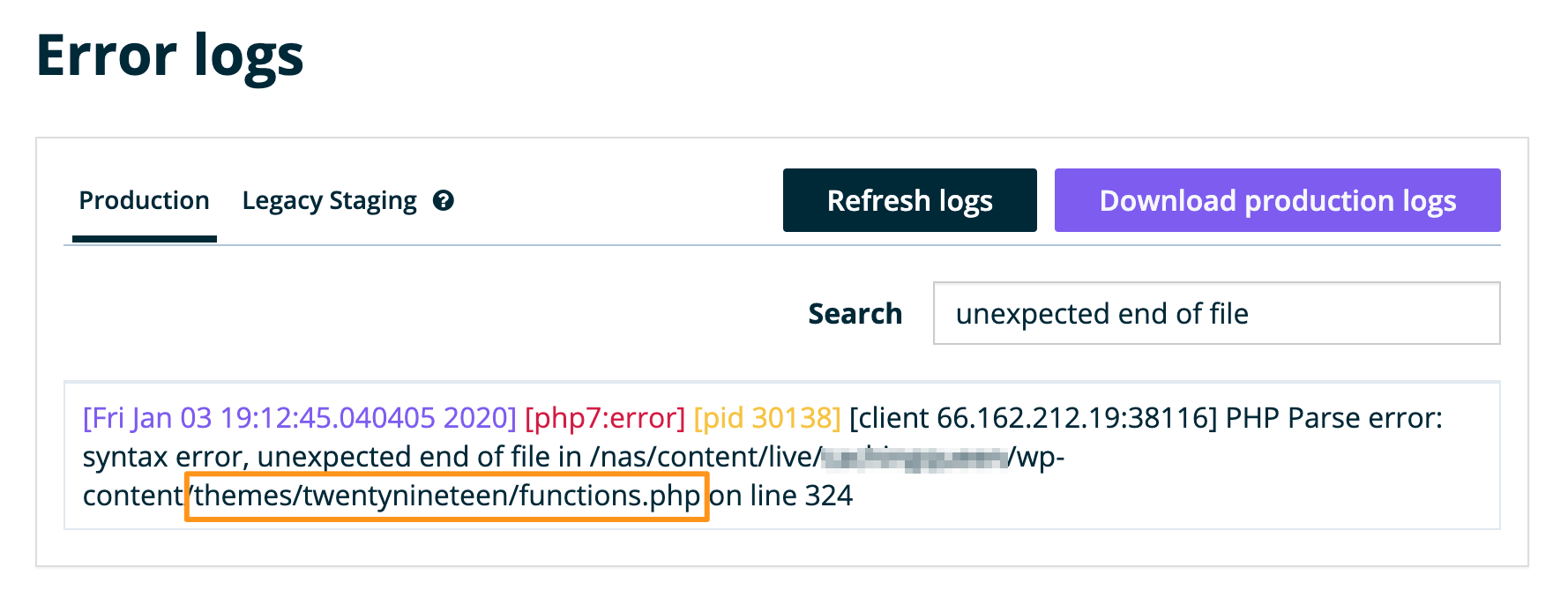
This error may present itself on the page when visited, or it may also appear as a blank “white screen of death,” or even as a 500 error. If so, determine if the error is caused by an “unexpected end of file” by looking at the Error Logs in the WP Engine User Portal.
Learn how to locate the WP Engine error logs here.
The “unexpected end of file” error is not specific to WordPress®, and can happen on any PHP-based website.1 This specific error means the file mentioned in the error message ends abruptly without the proper closing tags, and the code was unable to be parsed as a result.
Fixing the “Unexpected End of File” Error
To fix this error, first identify the file causing it. Search the logs for the phrase “unexpected end of file” to locate the culprit. Then, there are two options:
Option 1: Restore the website
Option 2: Correct the file
Option 1: Restore a Backup
Once confirmed that the issue is due to an unexpected end-of-file error, the easiest way to resolve the issue is to restore the website to the last known-good state, if possible. This is most likely the point just prior to any recent code changes.
Review our guide to learn how to restore the website to a previous version.
Option 2: Correct the File
If restoring the website is not a viable option, fix the file itself by downloading it over SFTP or opening it in SSH Gateway.
- View our guide to learn how to connect to the website using SFTP
- Or, learn how to connect to the site using SSH Gateway
When viewing the file, we noticed the file was missing the last few lines, and instead abruptly cuts off:
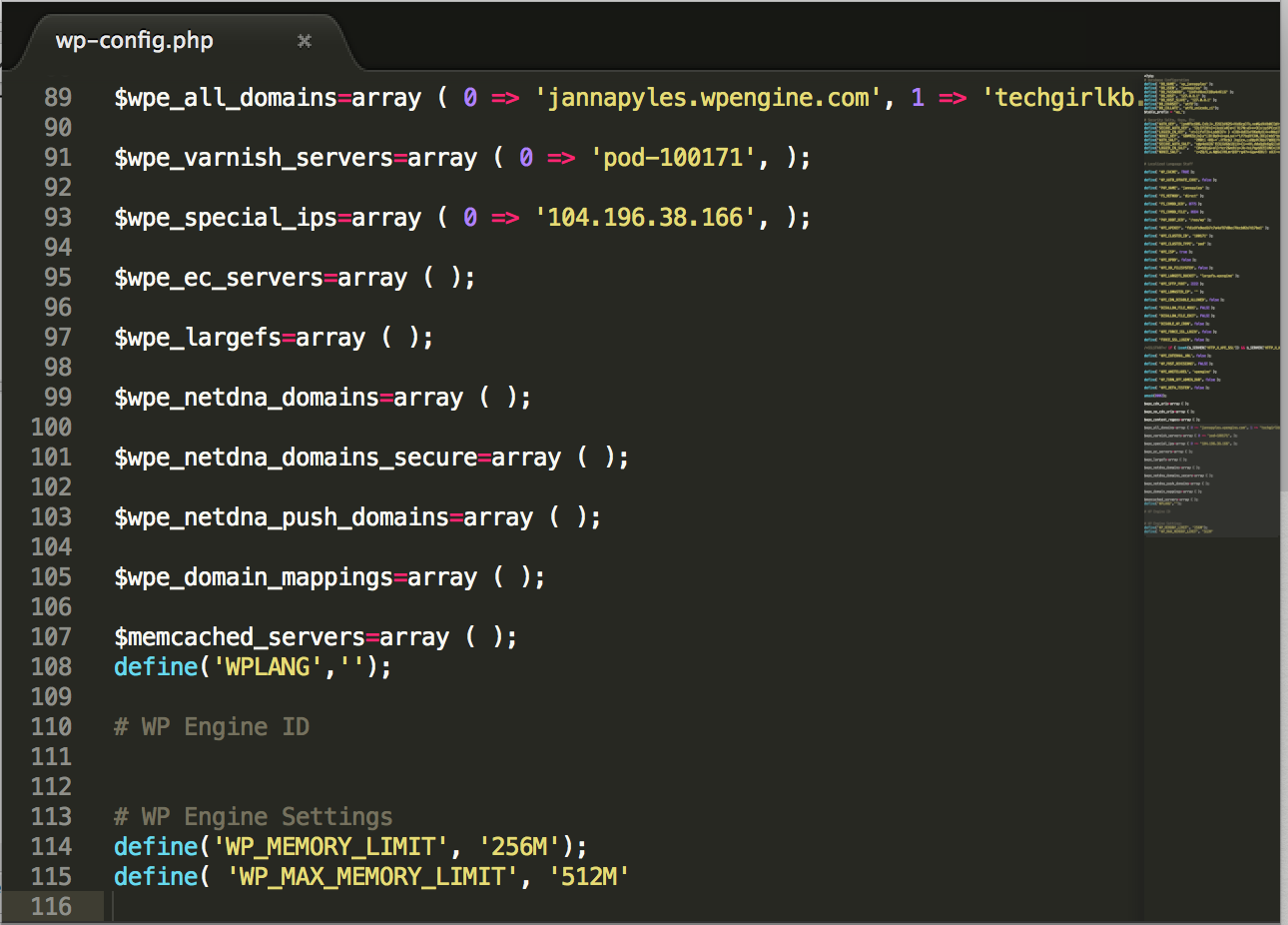
If it’s known what should go here, go ahead and add it back. Then, save/upload the file back to the server.
If it is not known what should be here, locating an older version of the file may be helpful:
- Download and open a backup locally
- Restore an older version of the website to a different environment
- If unable to find the correct code using backups, try downloading a default version of the theme or plugin files
Once the broken file is fixed by adding the proper closing lines, be sure to save and upload the file. Finally, be sure to purge cache.
After fixing the file, the website should load normally again!
NEXT STEP: Learn how to resolve a 500 error