Get Started
Migrate Posts/Pages Between Websites
Tags:
Key Takeaways
WordPress allows for migrating posts and pages between sites without duplicating content. This feature is beneficial for merging WordPress sites or moving a site to WP Engine.
Exporting content correctly is crucial before importing. Ensure to export from the source site and download the export file.
Importing content requires the WordPress importer plugin and selecting the exported XML file. Assign an Author user to the posts and pages.
Sites served exclusively over HTTPS are 1-5 seconds faster in LCP.
WordPress® has a feature that allows for migrating posts and pages without copying any other content.1 This is primarily useful when merging two WordPress sites or when manually migrating a website to WP Engine.
The built in import/export WordPress function easily syncing new posts and pages without needing to reimport the entire database. Even though the export will contain all of the posts and pages, it will not create duplicate content, and only new posts/pages will be created.
Export Content
Exporting the correct content is the first step of the process and can be done with tools directly in WordPress. Be sure to preform the export from the source site, where content should be copied from.
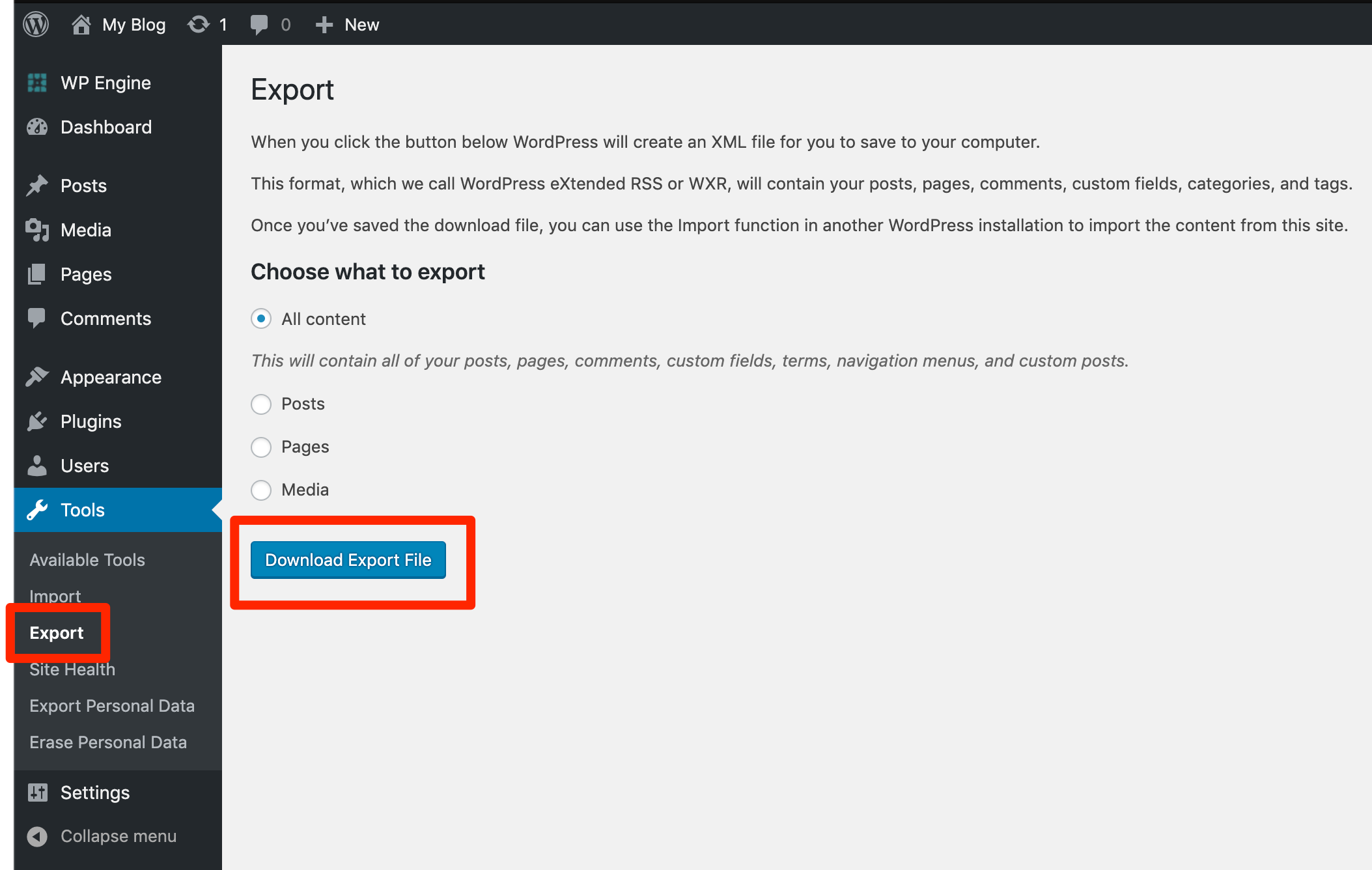
- Log in to the wp-admin of the source site
- Hover over Tools
- Click Export
- Choose what to export
- If only exporting posts, keep in mind that featured images will not be carried over and must be manually imported again on the destination site.
- Click Download Export File
Import Content
Content must be exported correctly before it can be imported. The export file should be downloaded from the previous step before beginning.
Be sure to perform this step on the destination site, where content should be copied to.
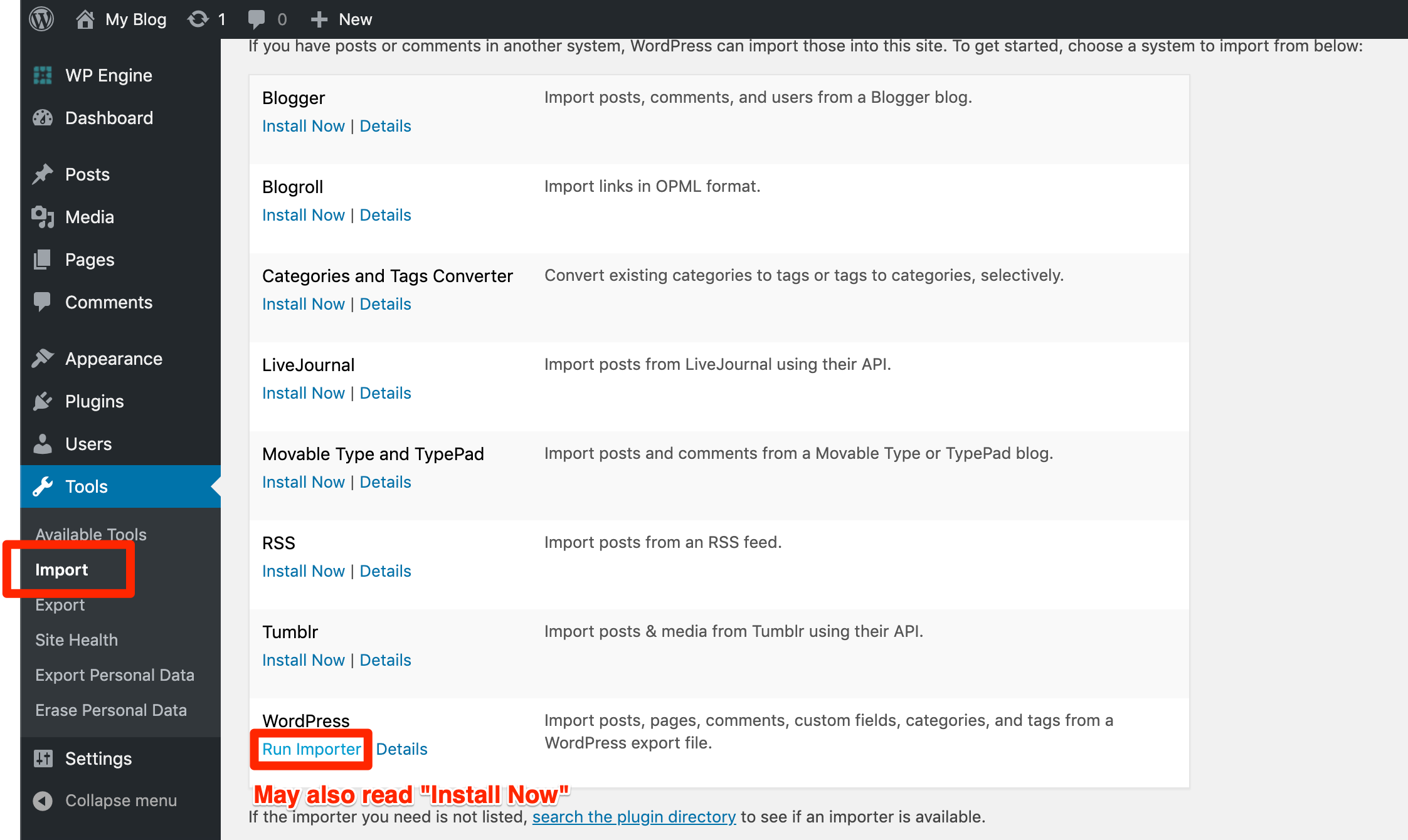
- Log in to the wp-admin dashboard of the destination site
- Hover over Tools
- Click Import
- Click WordPress
- Click Install Now and/or Run Importer
- If the WordPress importer is not installed, a prompt will display to install the plugin.
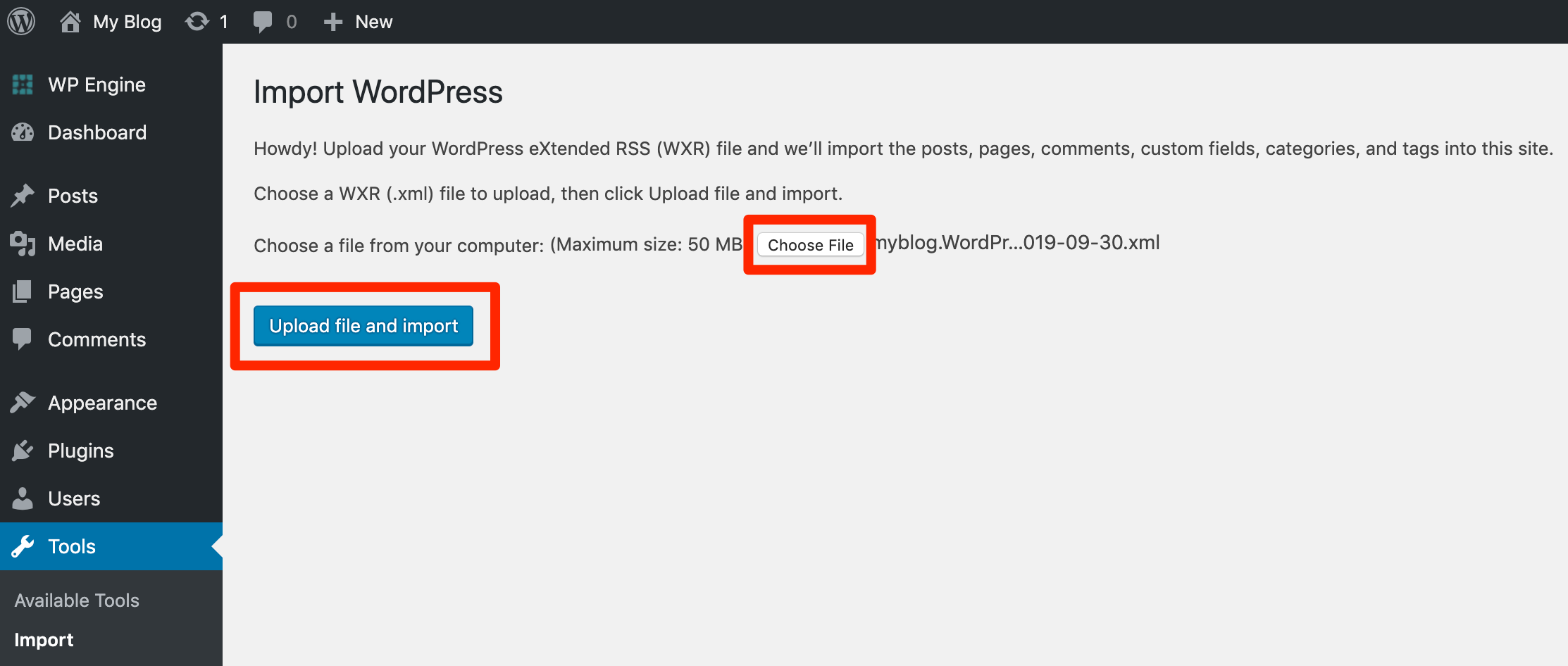
- Browse the computer for the exported XML file from the source site and select it
- Click Upload File and Import
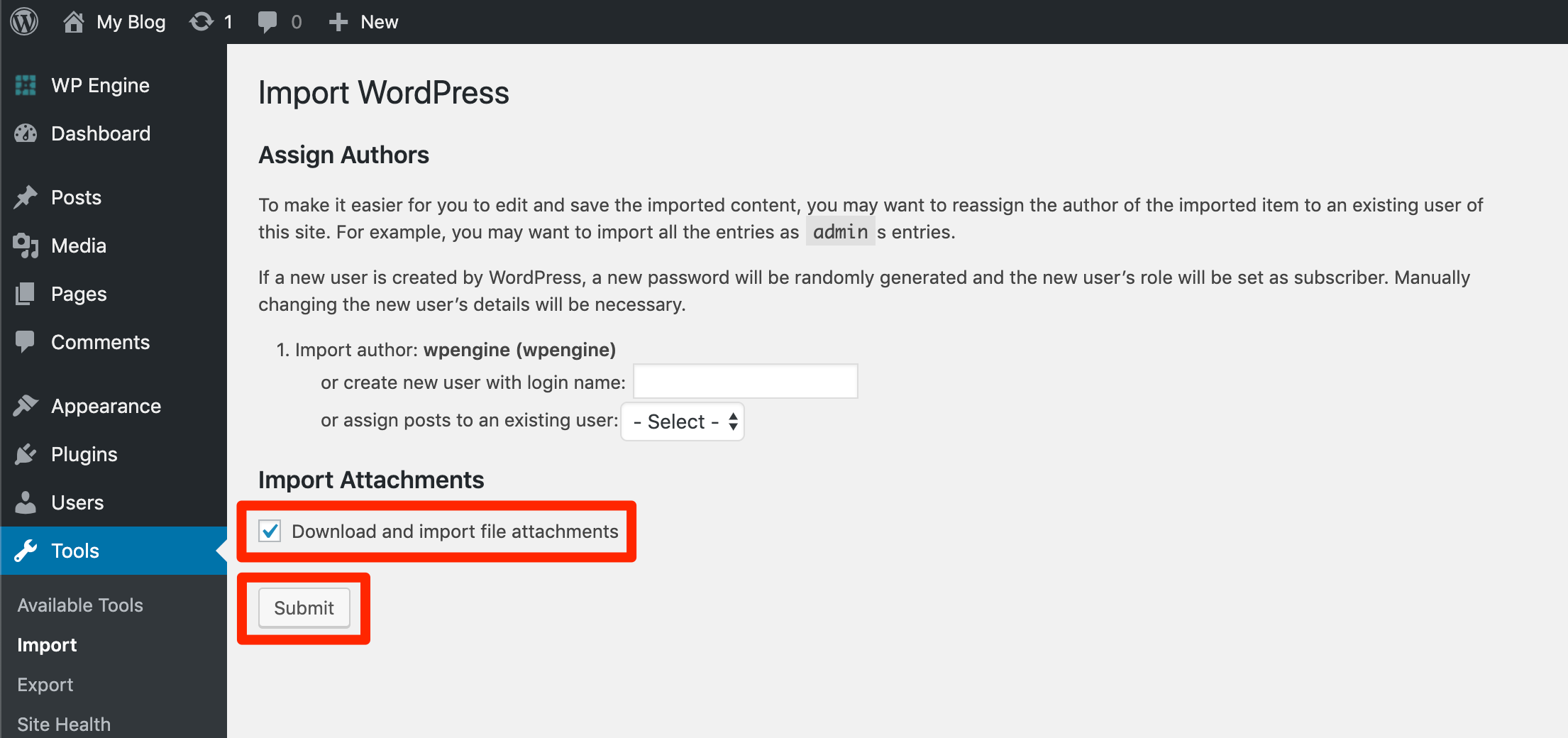
- Select the name of the Author user that will be assigned the posts and pages
- (Optional) Download and import file attachments
- Check this box to import photos and other media files attached to the post
- Click Submit
NEXT STEP: Downloading wp-content directory from another host