Get Started
Welcome to the ultimate WordPress dashboard tutorial for beginners. While WordPress is known for its user friendliness, its backend still comes with a number of options. Getting familiar with all of them can take a while.
To help you get there faster, this guide breaks down everything the WordPress dashboard has to offer in an easily digestible way.
By the end, you’ll have a solid understanding of the essential WordPress basics and the skills necessary to design and manage your site.
What is the WordPress dashboard?
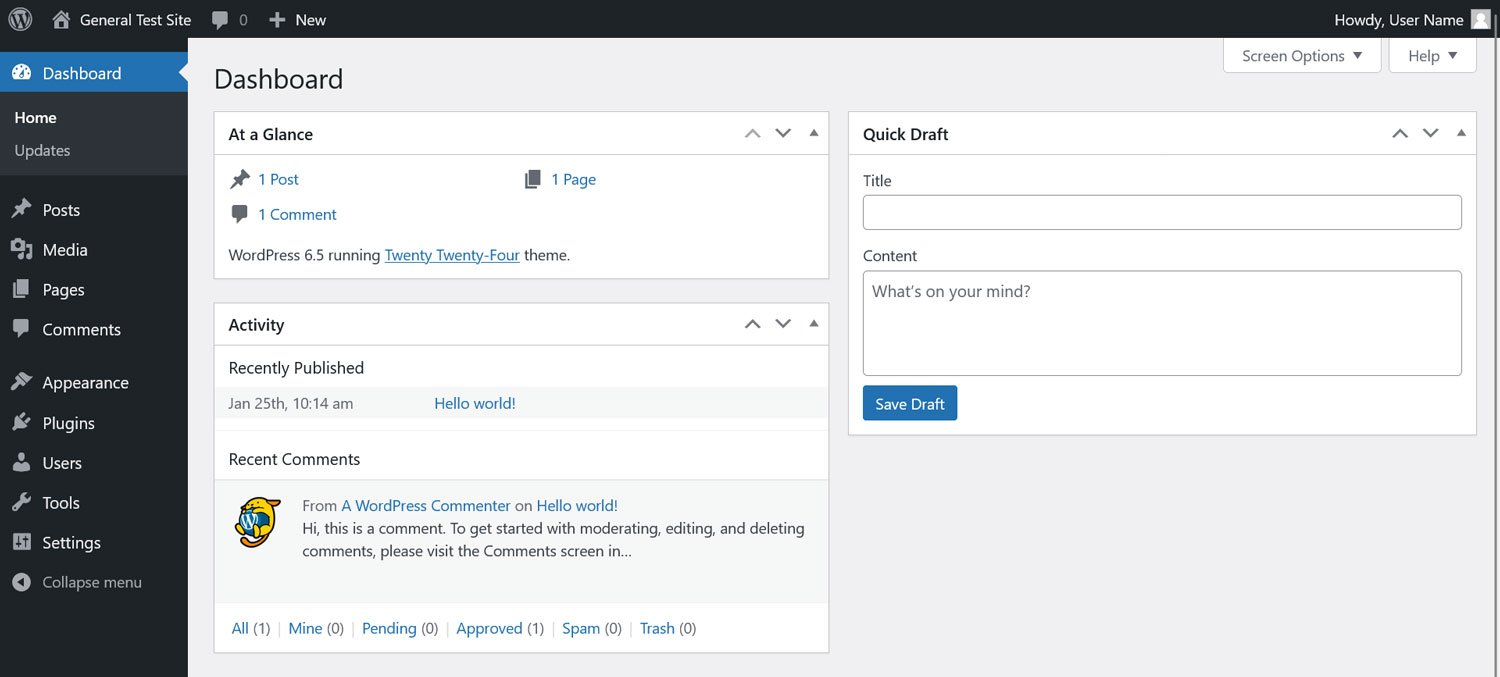
Behind every WordPress site sits the WordPress dashboard: the control panel of your website and the focus of this tutorial. This is where you, as the administrator, can style your site, install plugins, write blog posts, create new pages, and change site settings.
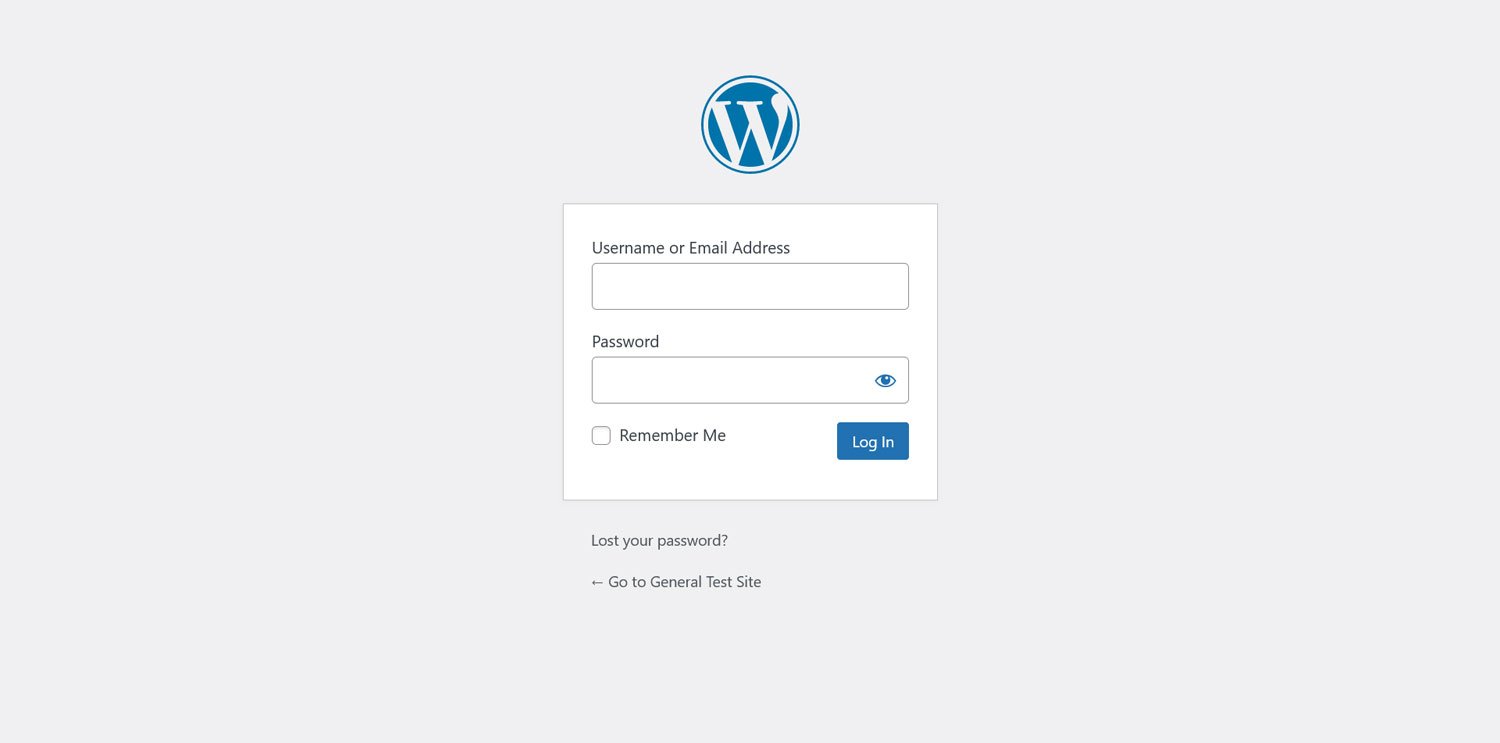
You access the dashboard by logging in with your account. The login page is usually located at https://yourdomain.com/wp-login.php or https://yourdomain.com/wp-admin. Both addresses will land you on the WordPress login page and subsequently the dashboard.
What parts make up the WordPress dashboard?
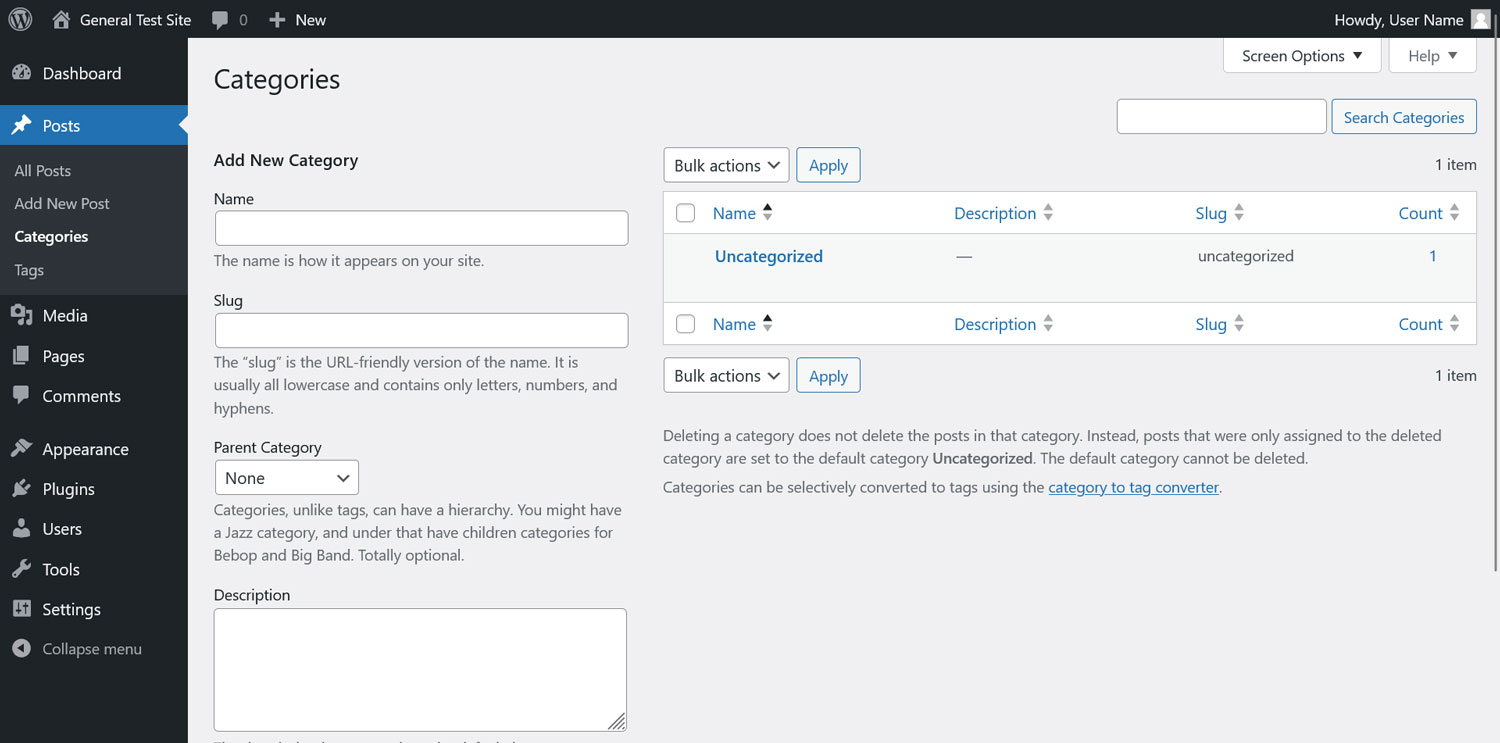
The WordPress dashboard consists of various pages that you can access through the main menu on the left-hand side of the screen. Here’s a quick overview so you don’t get lost:
- Dashboard: This is the home screen of your WordPress dashboard. You’ll find an overview of your site and some maintenance settings here.
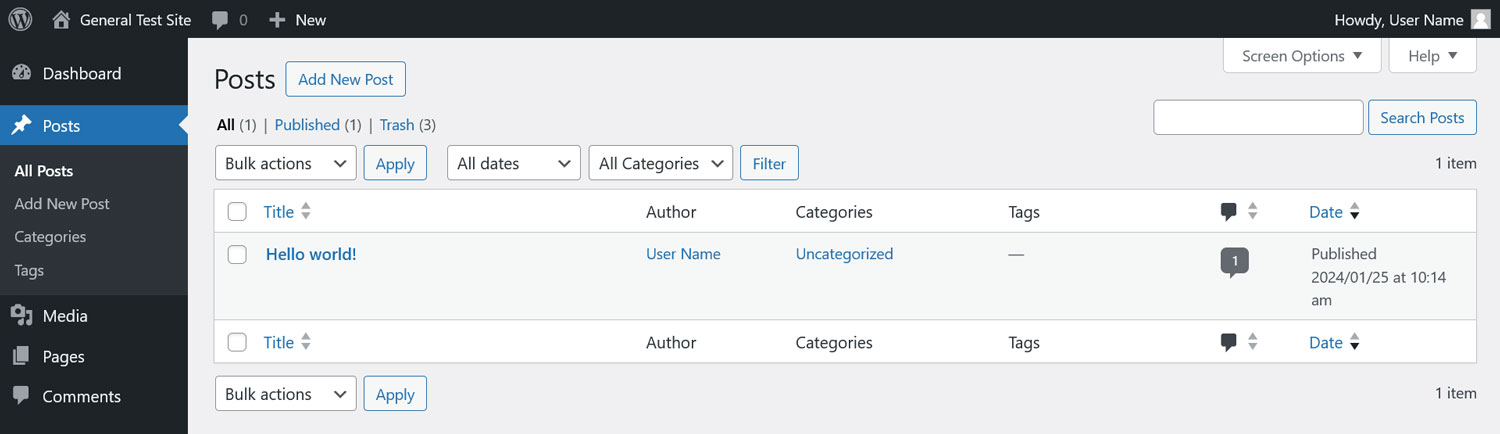
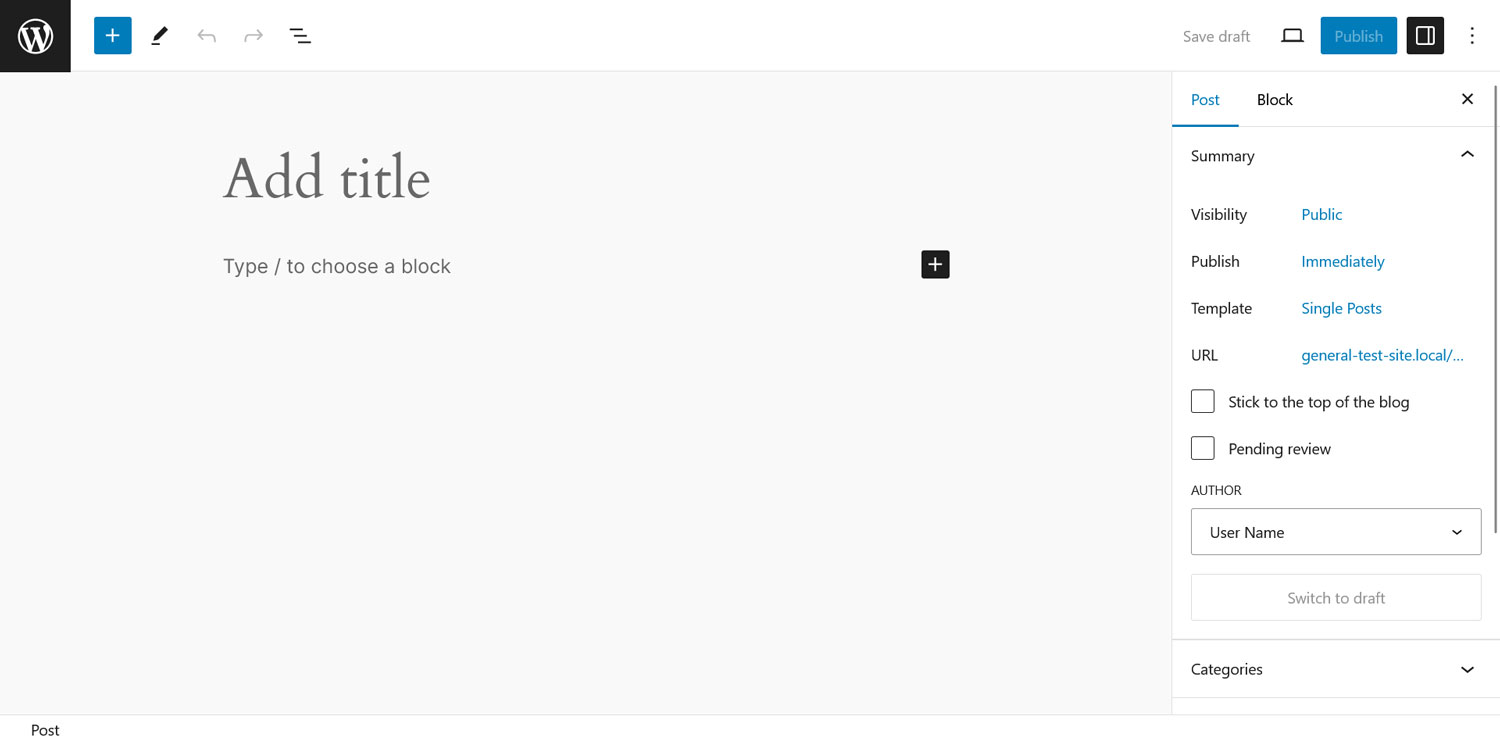
- Posts: Create new blog posts, as well as tags and categories.
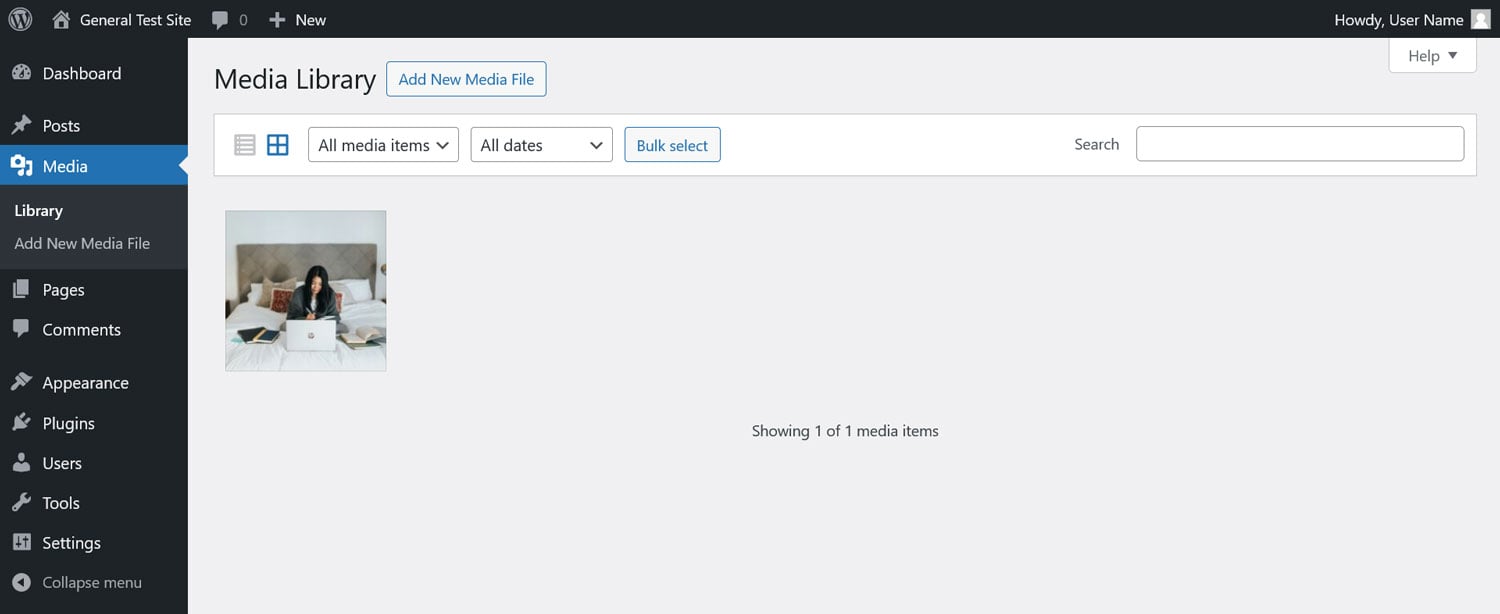
- Media: Where images, videos, and other media files are stored.
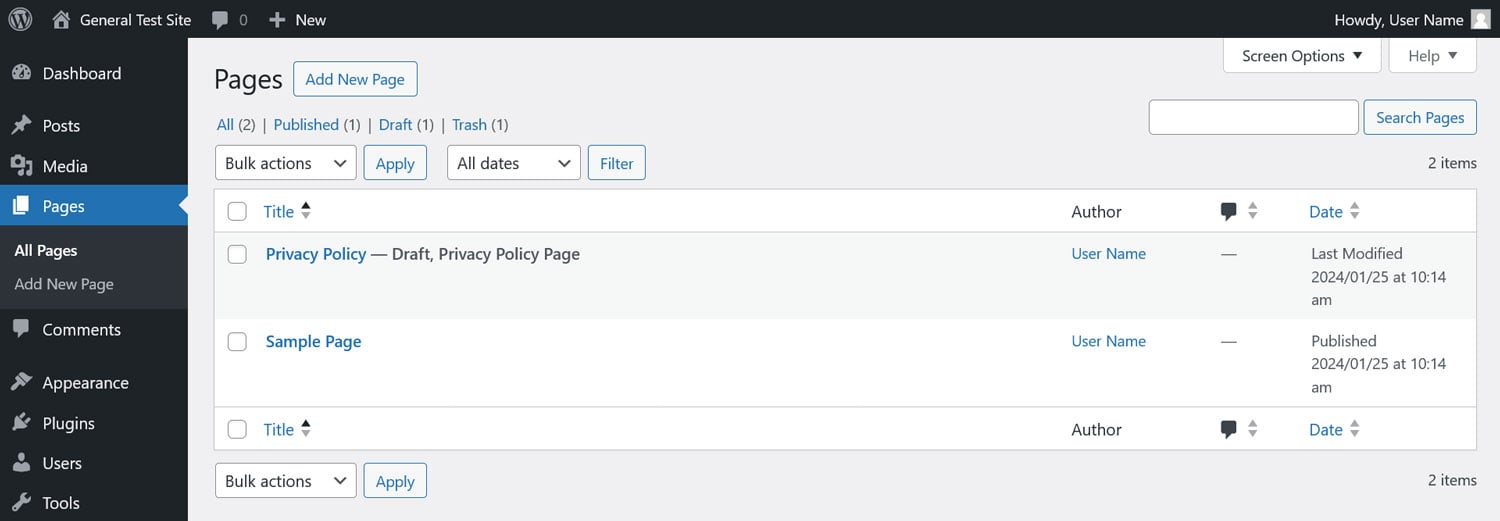
- Pages: Similar to posts, this is where you create new pages for your website.
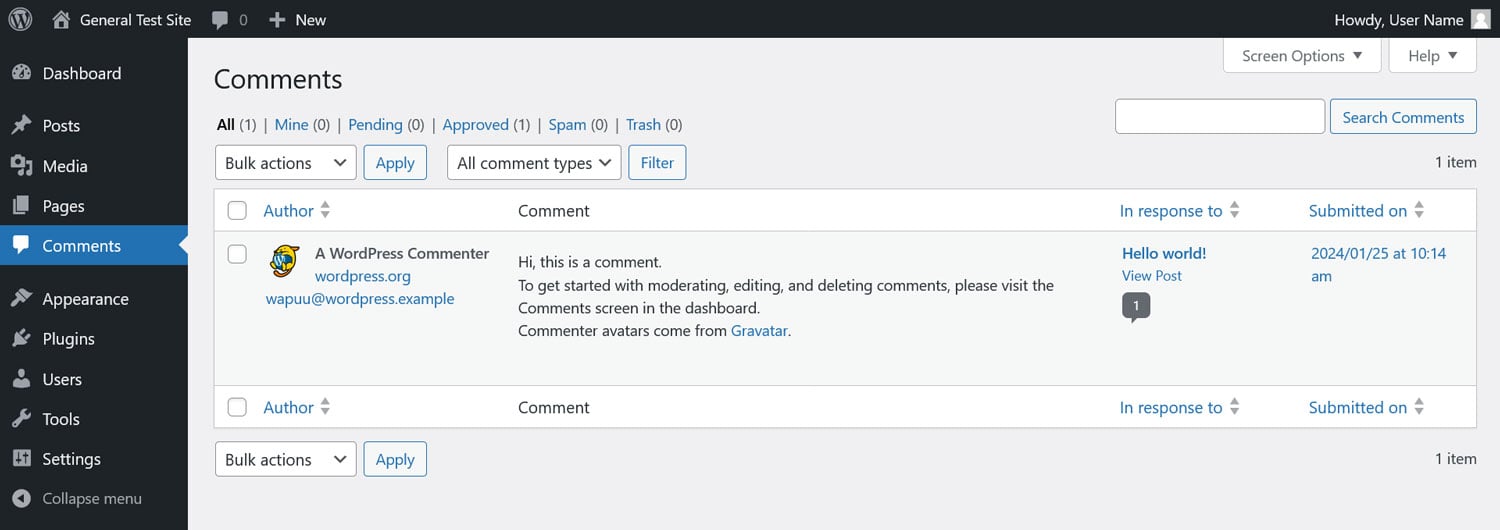
- Comments: Manage comments left on your blog posts.
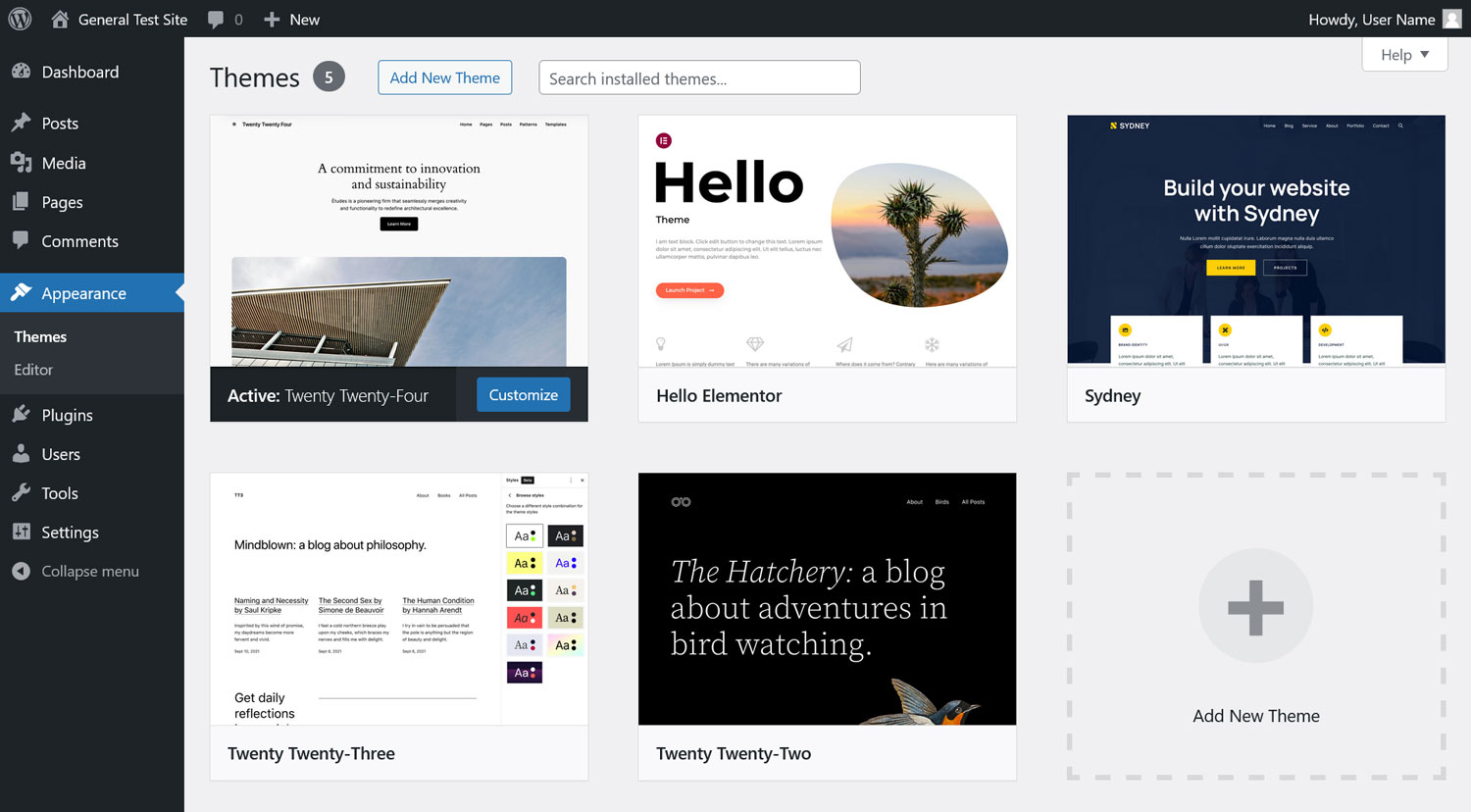
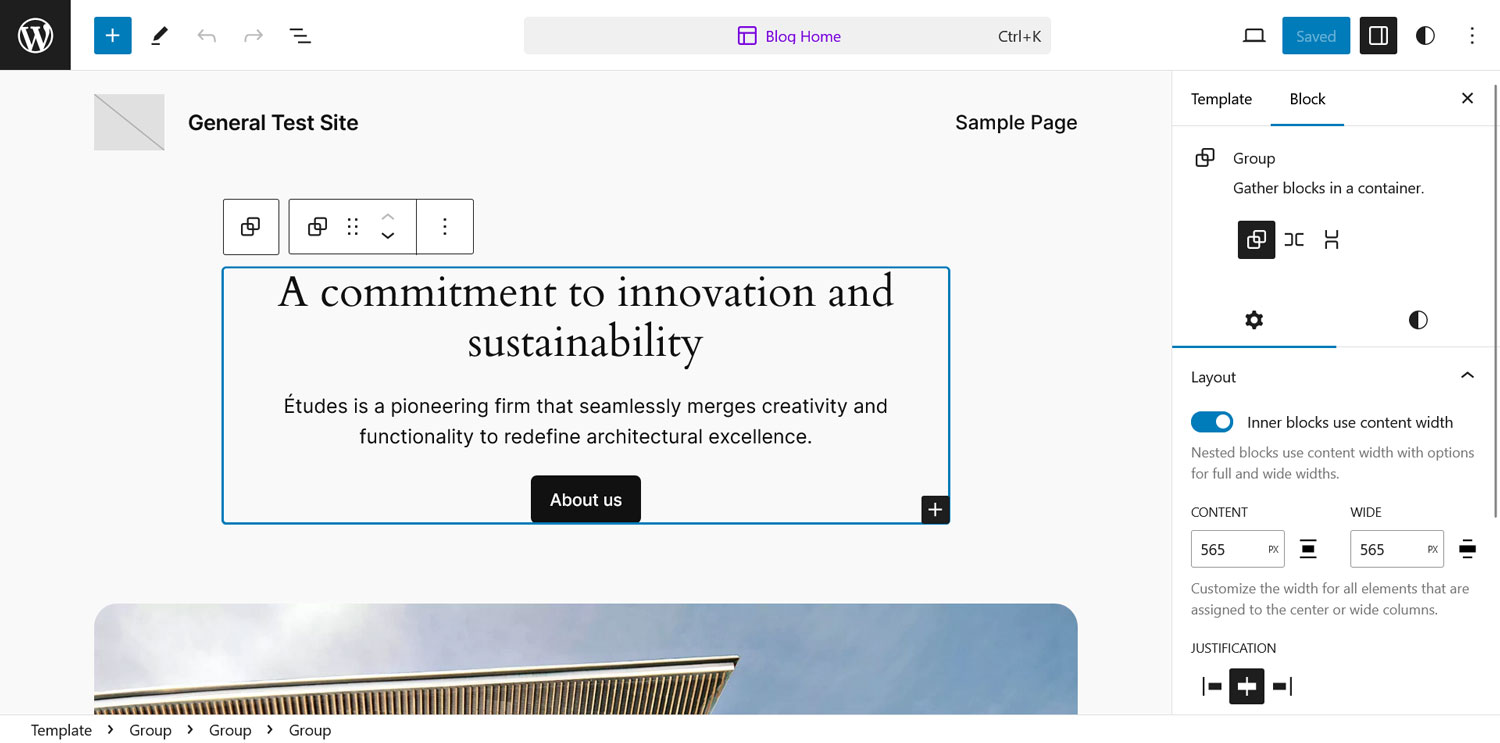
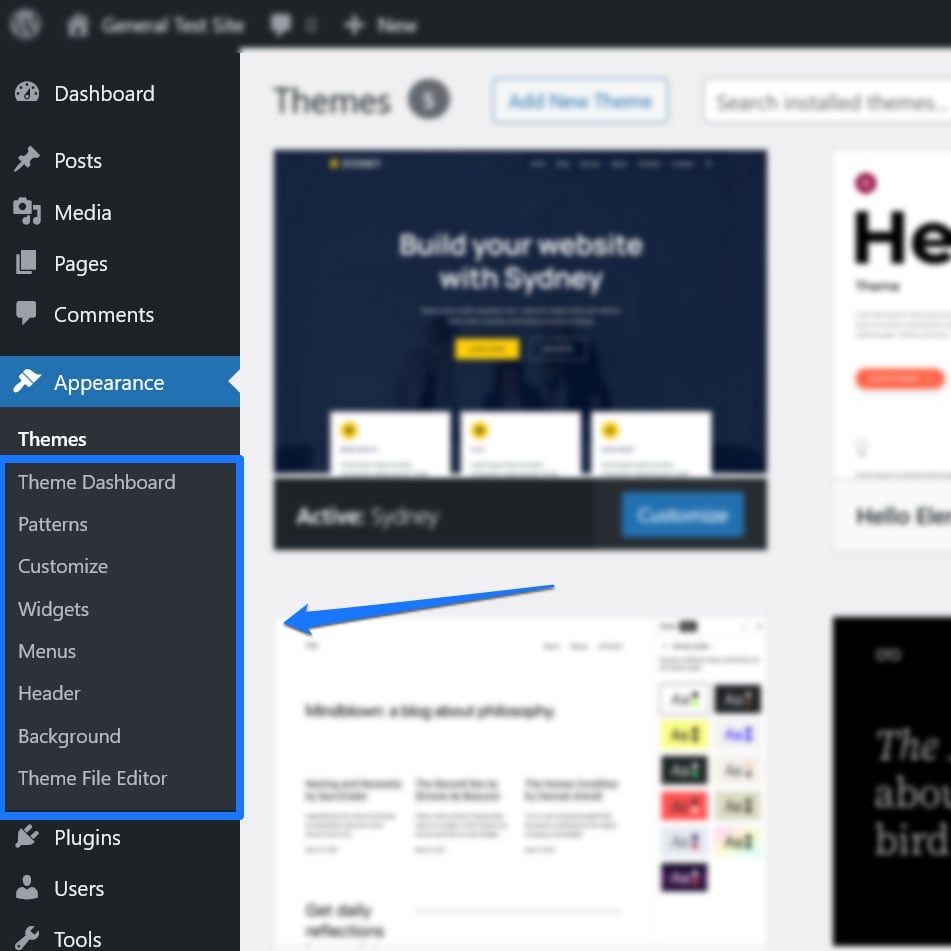
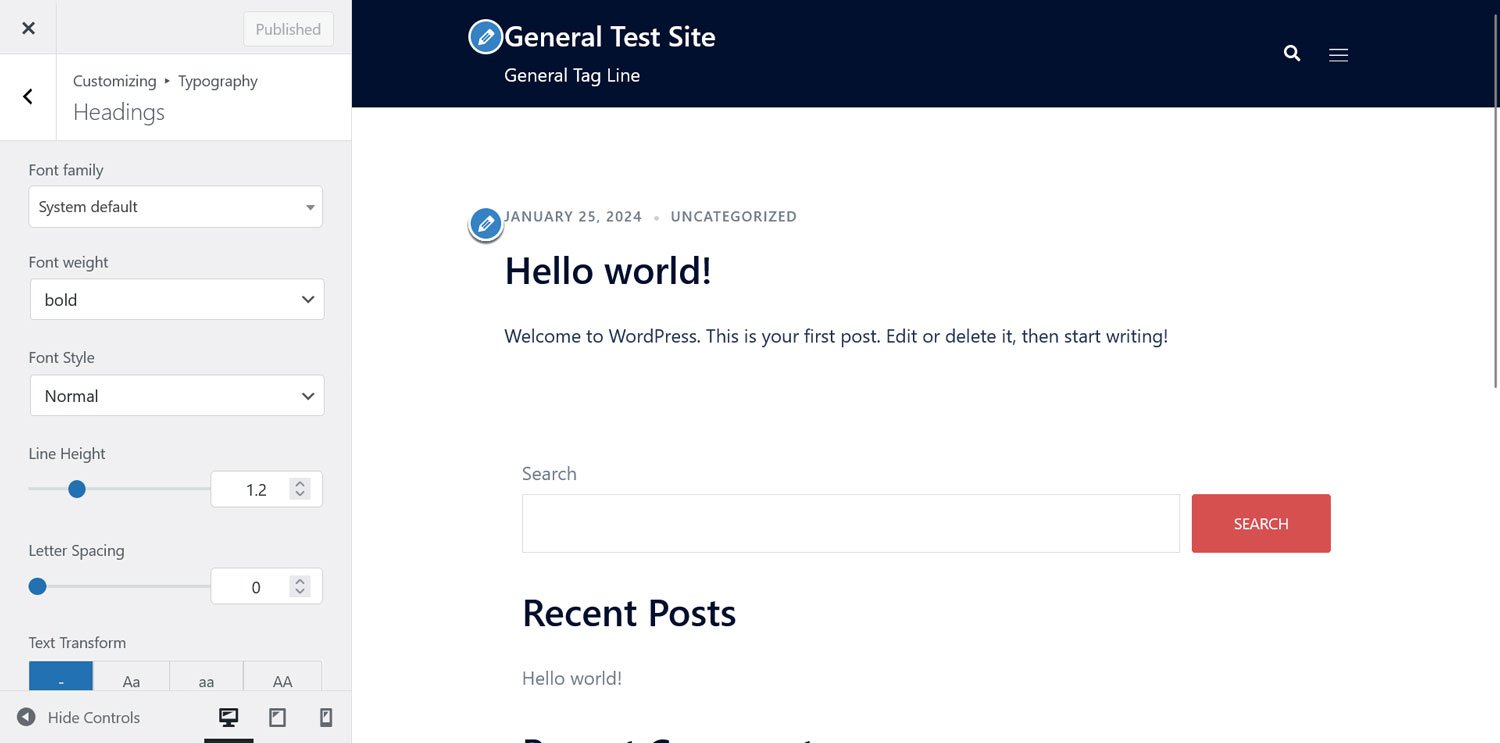
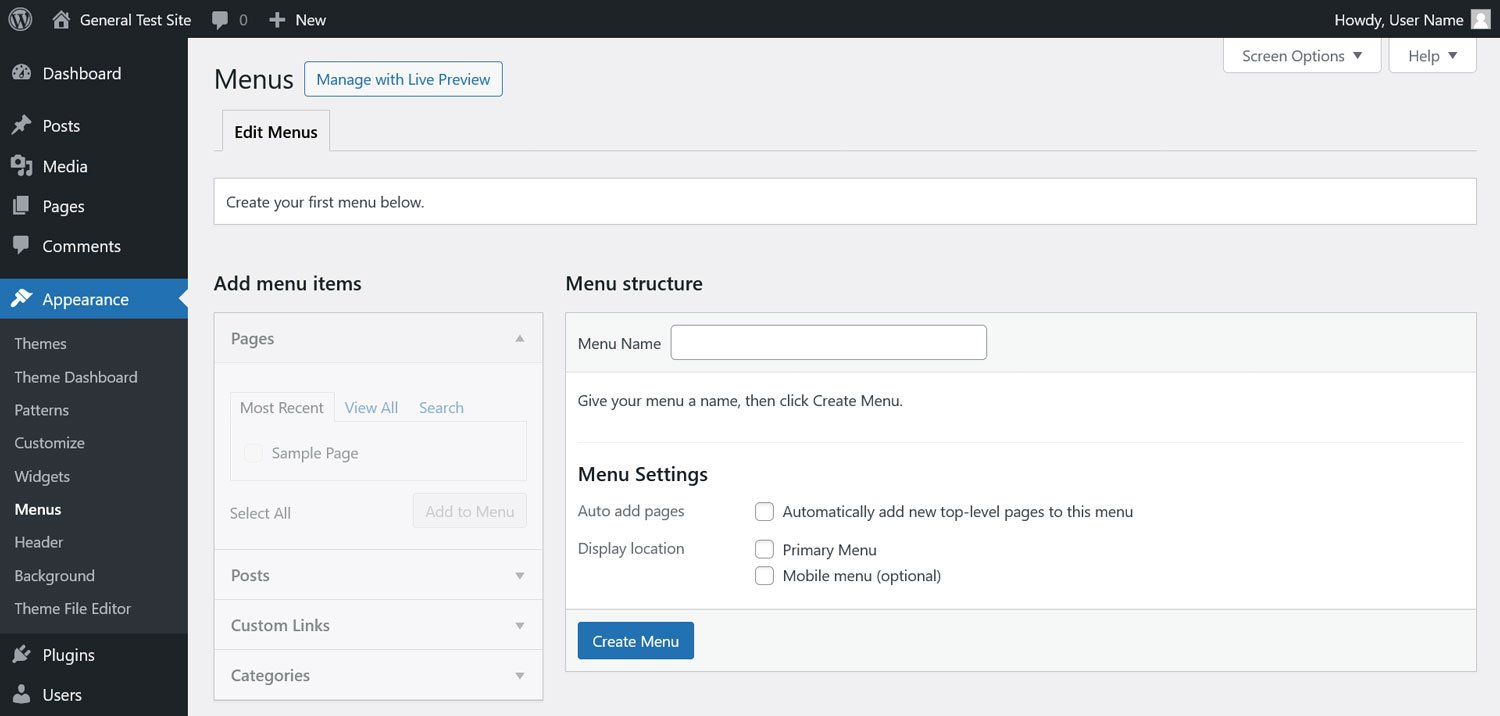
- Appearance: Switch themes, or style your current theme.
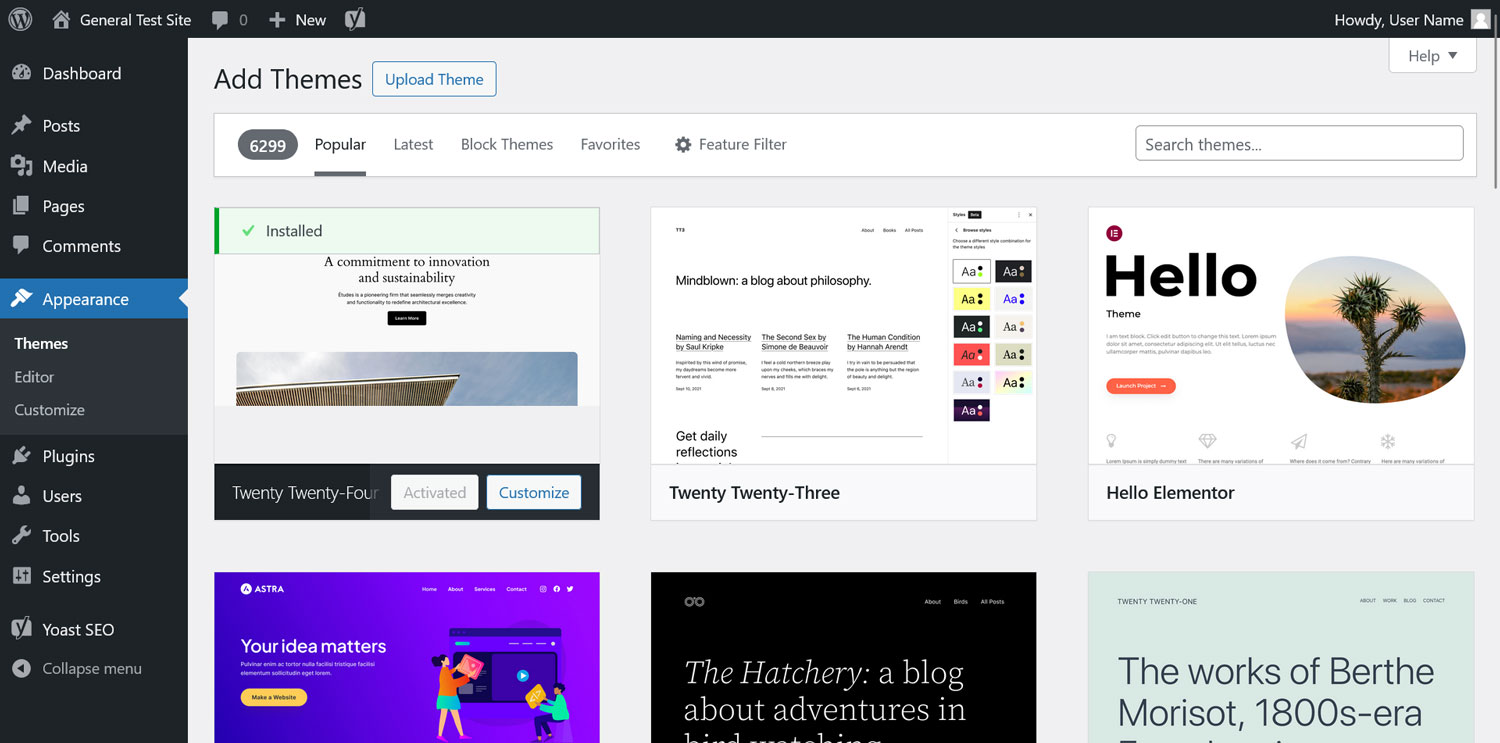
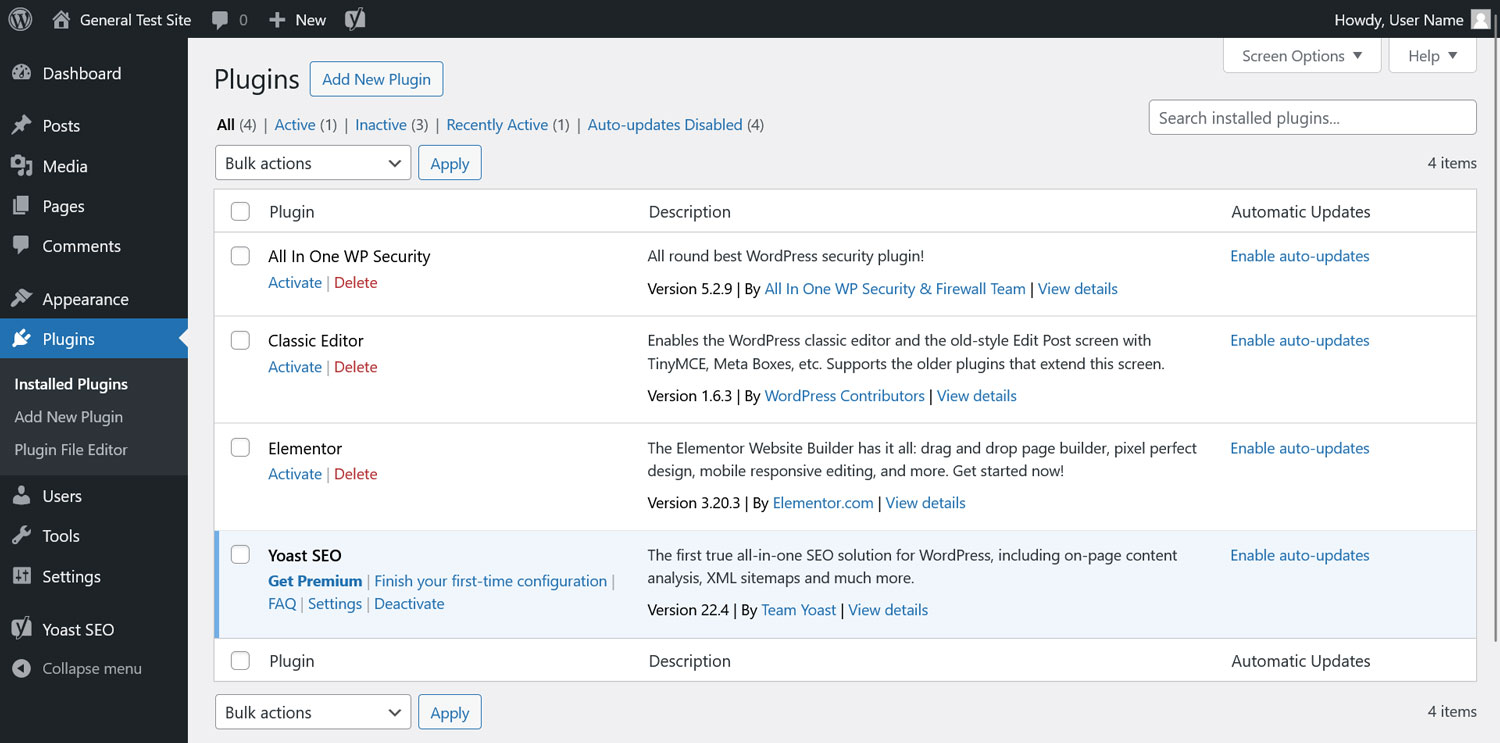
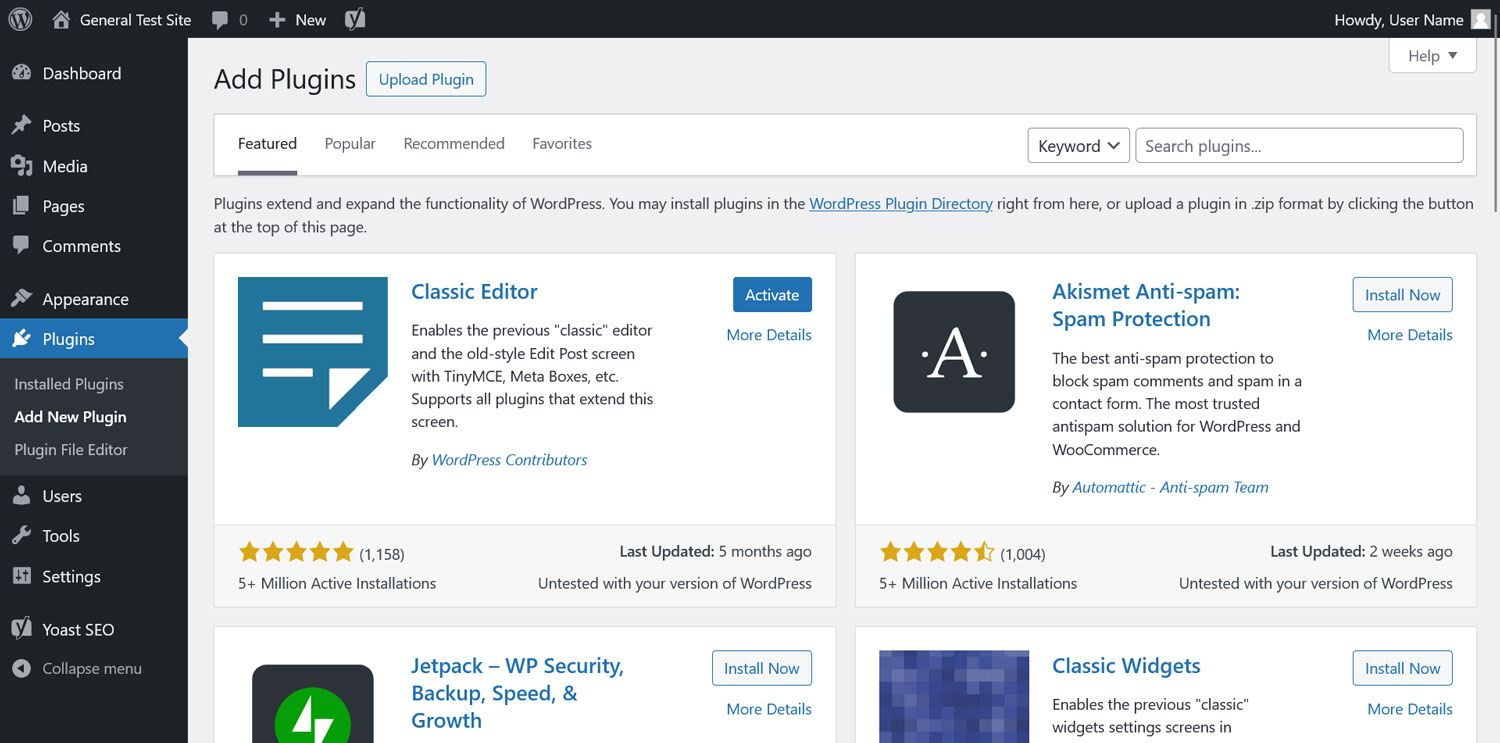
- Plugins: Install new plugins and add new functionality to your website.
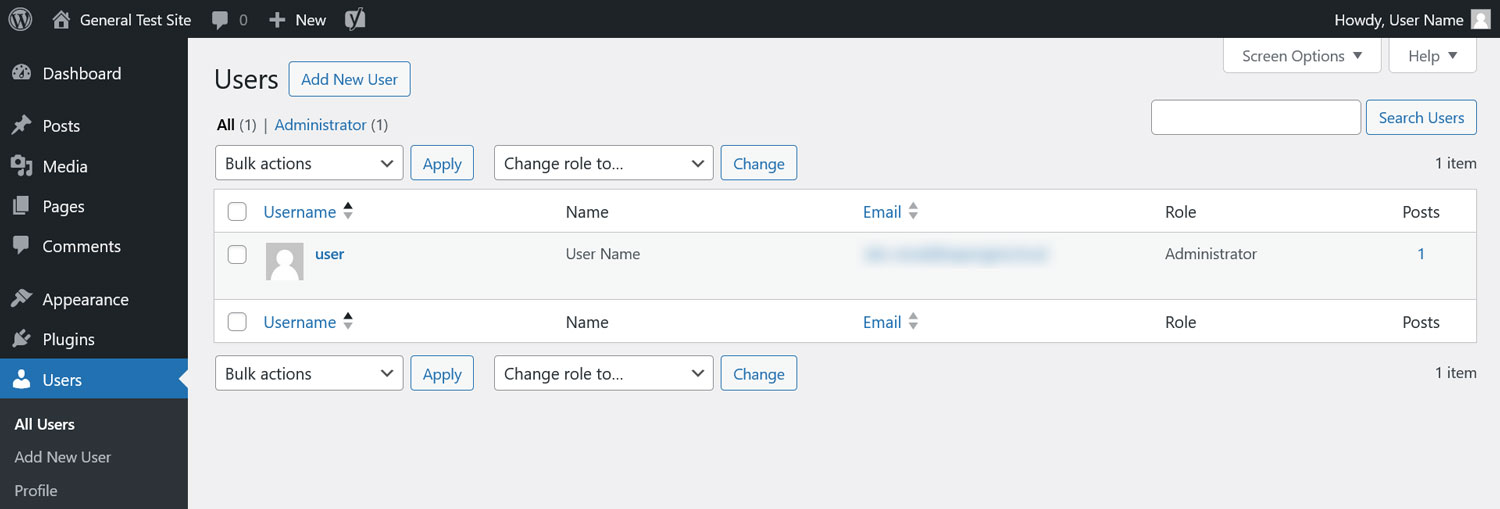
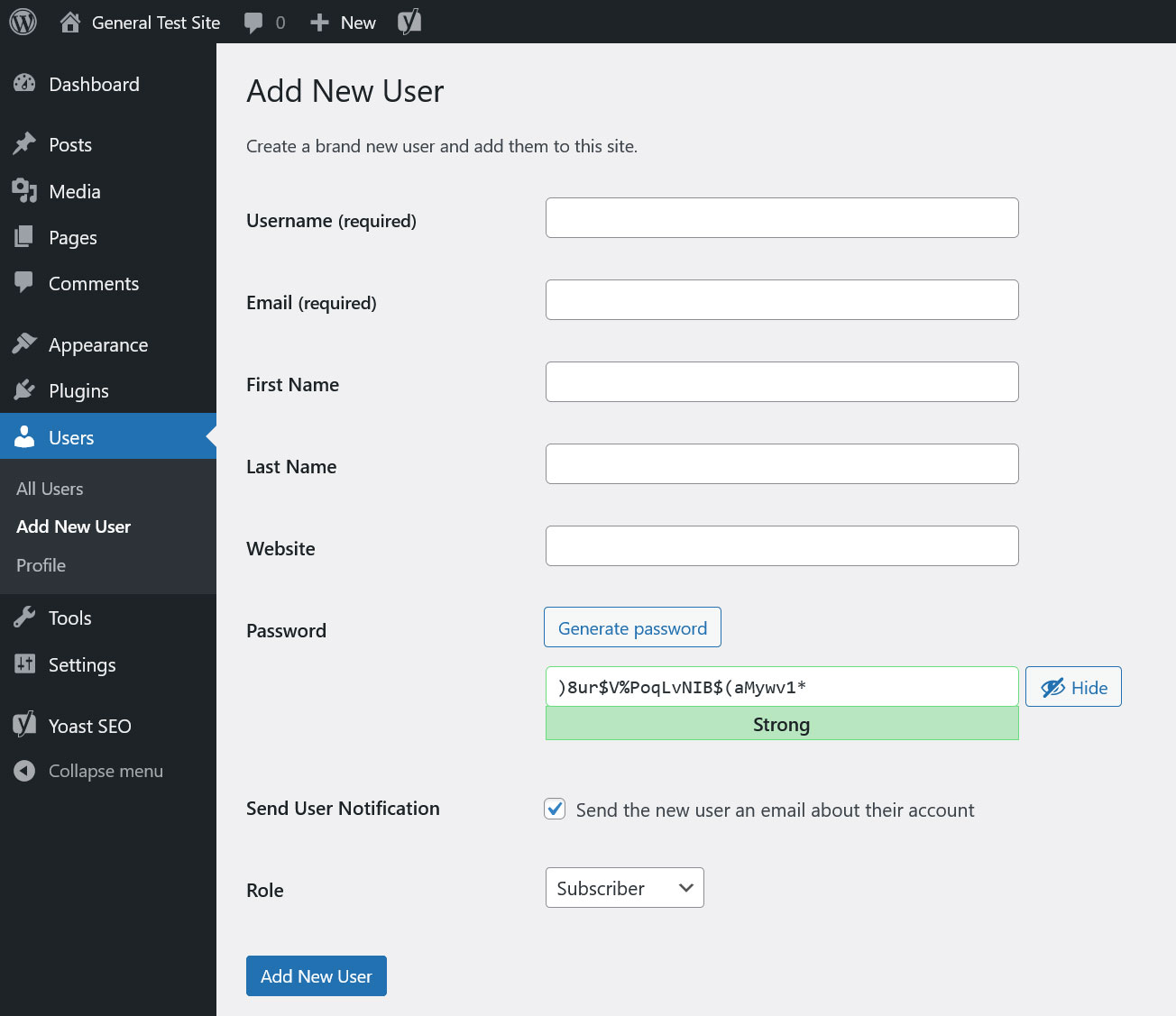
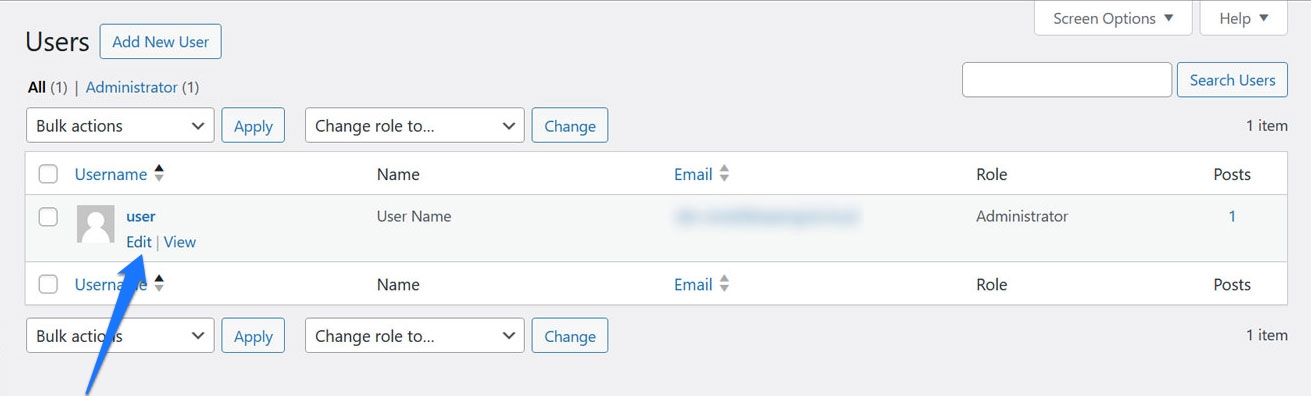
- Users: Add new users who can log in to your website and help you run it.
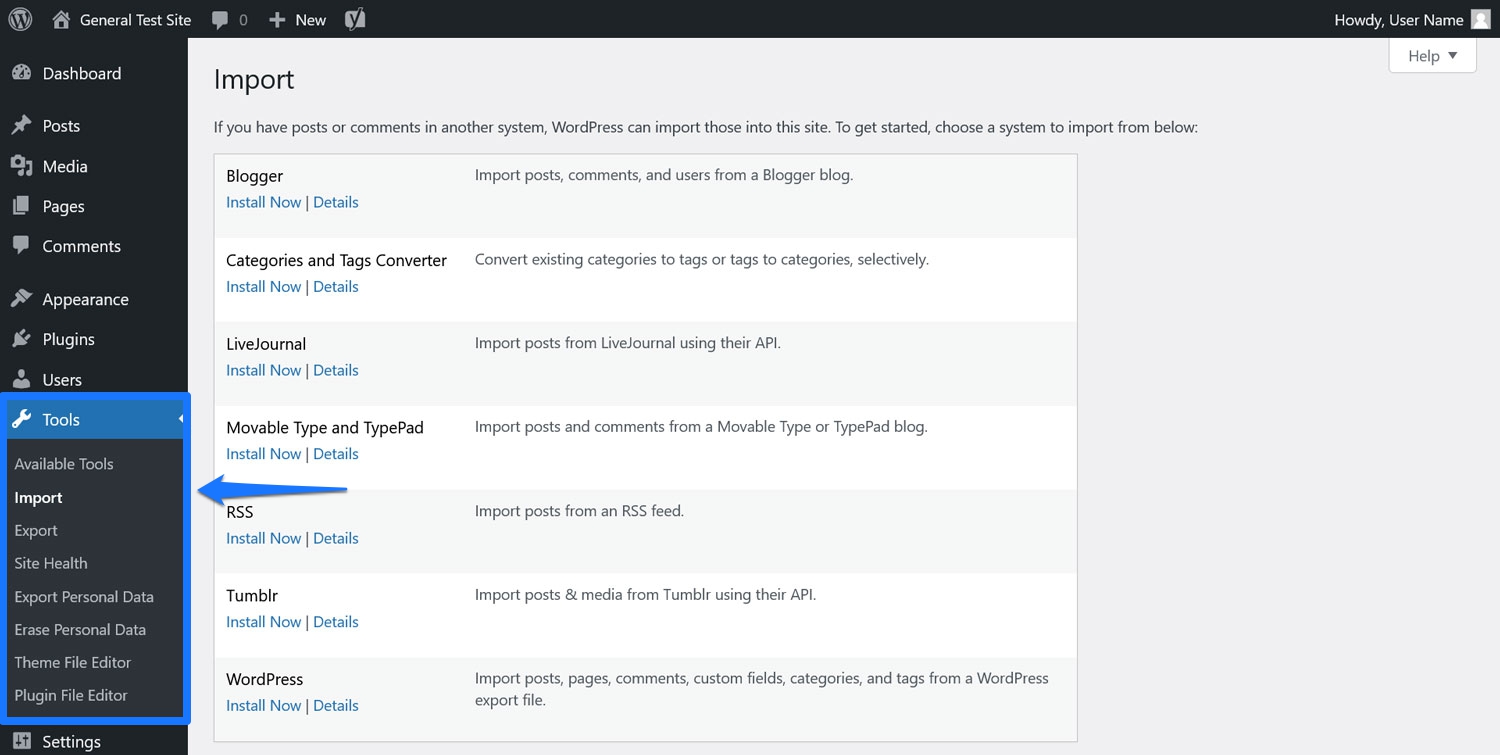
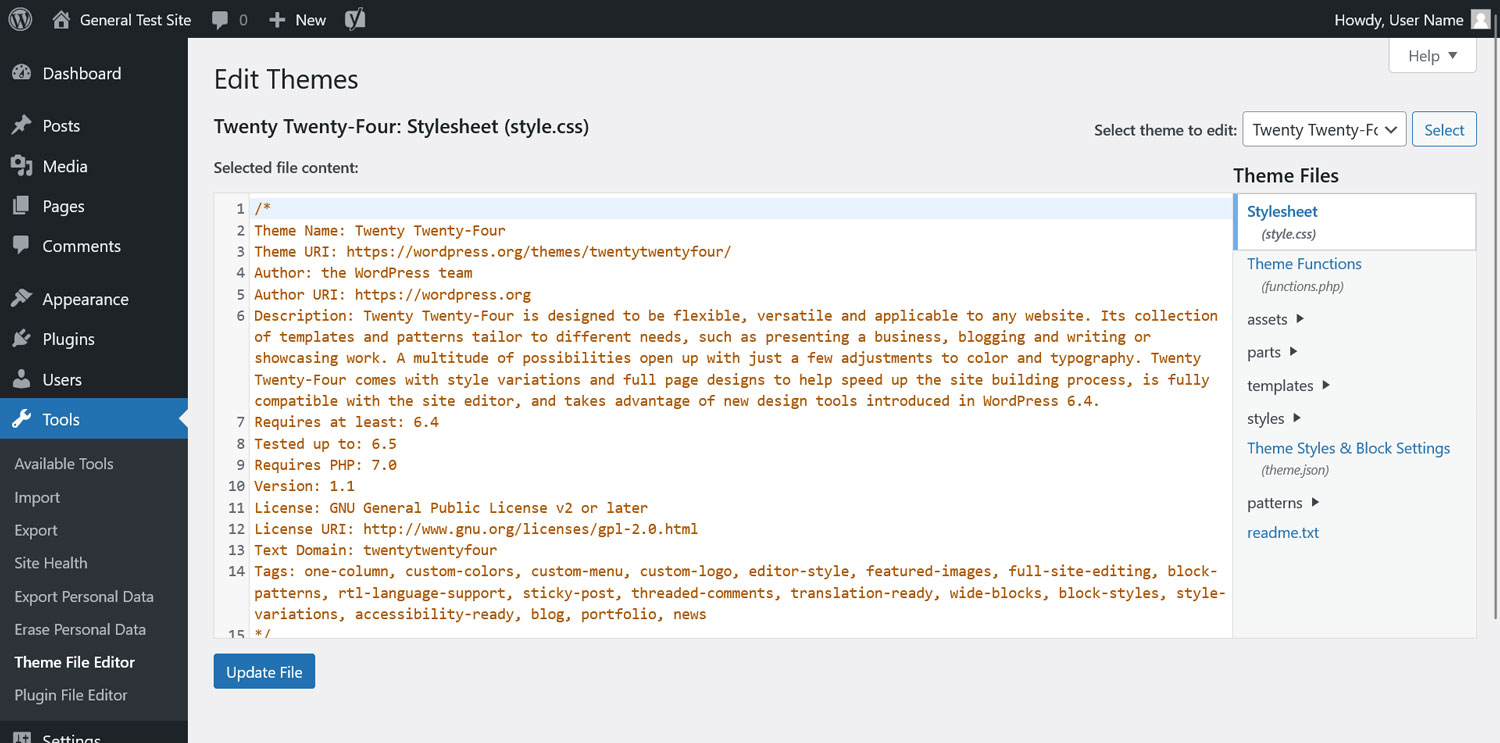
- Tools: Various advanced tools that let you do things like check on site health, export or import your site, or edit theme and plugin code.
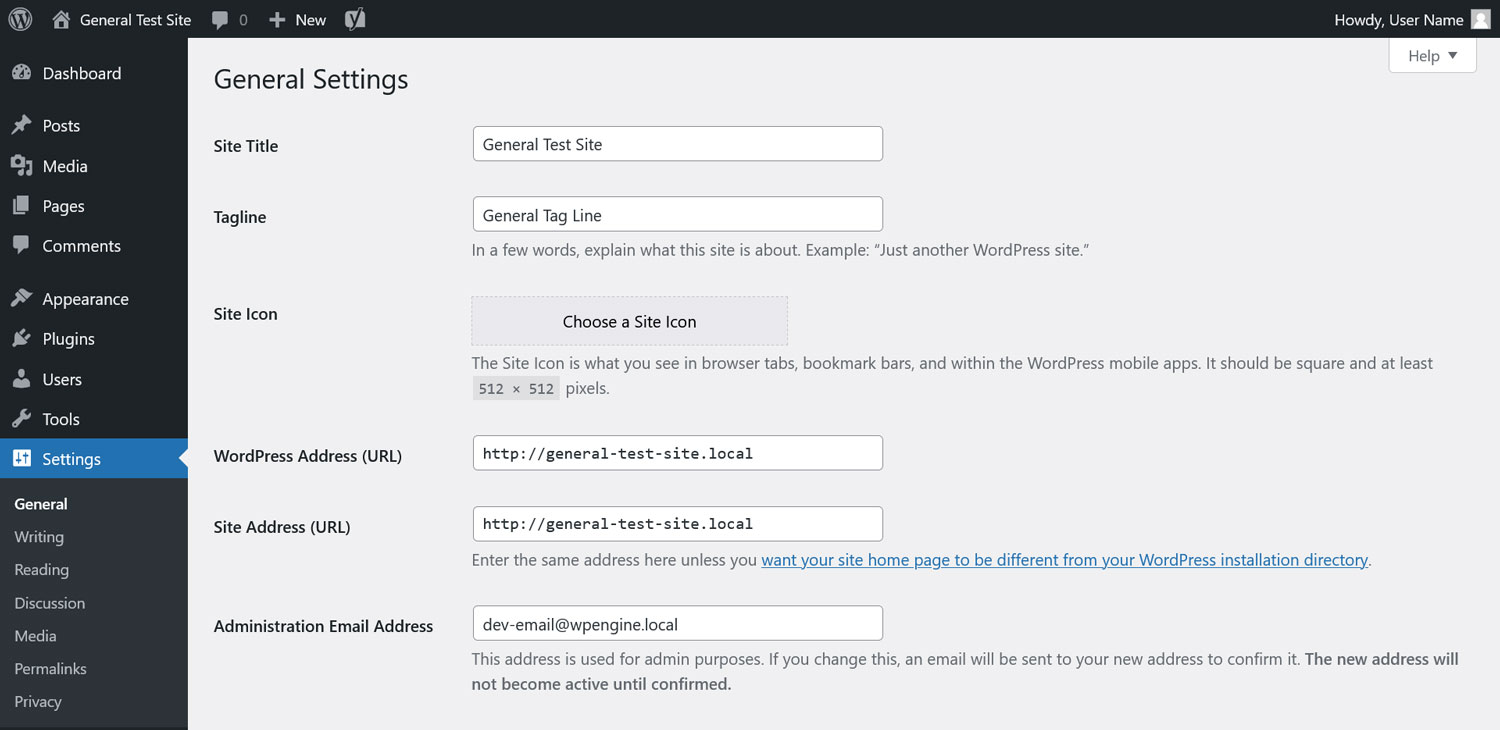
- Settings: Update various website and dashboard settings.
Some plugins will add an extra menu to the list, while others will add a submenu to Settings.
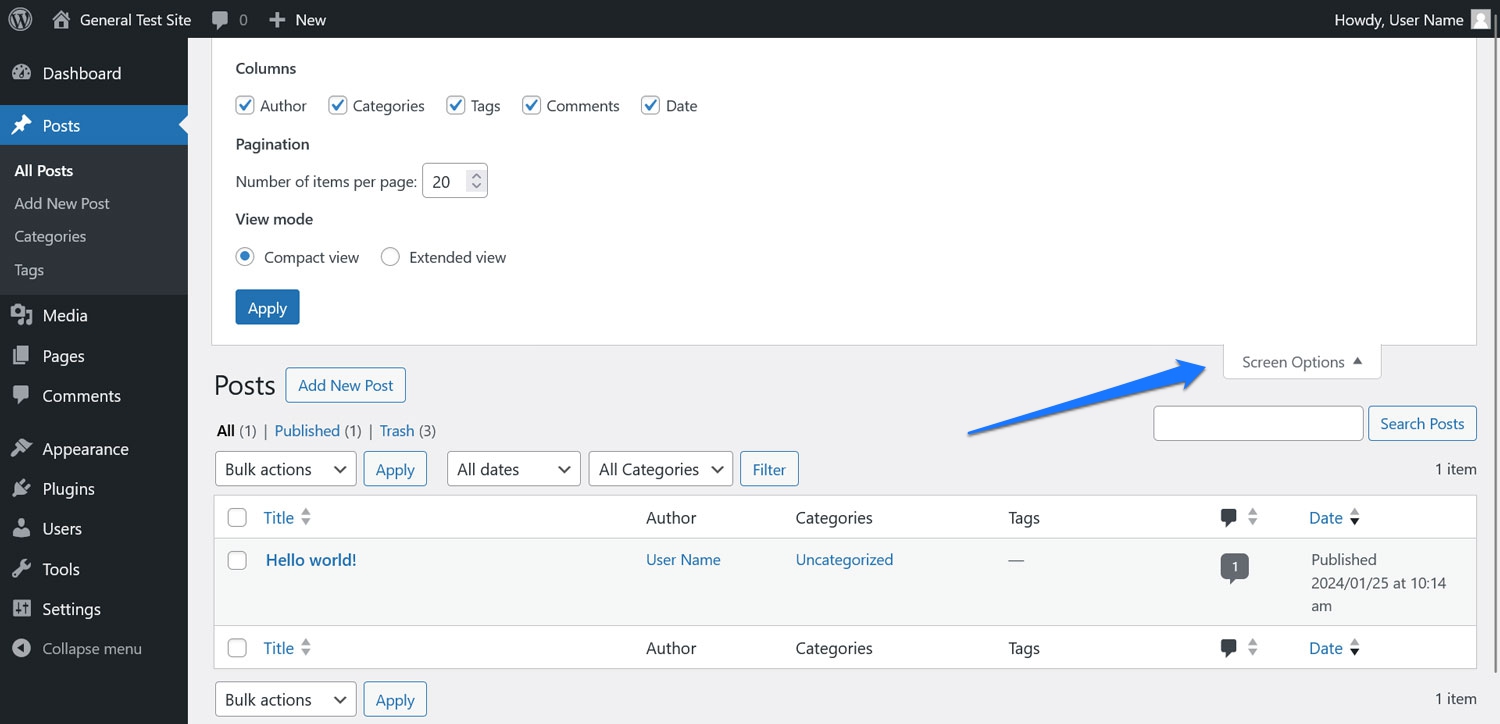
Also, keep an eye out for the Screen Options and Help menus often in the top right corner of most pages. These can help you customize the dashboard to your liking or help you use the page
The dashboard home screen
The home screen is the first thing you’ll see upon logging in. You’ll find plenty of useful info at a glance here, like your latest comments, recent activity, or quick post draft creation.
If you install other plugins, they’ll often add their own widgets here too.
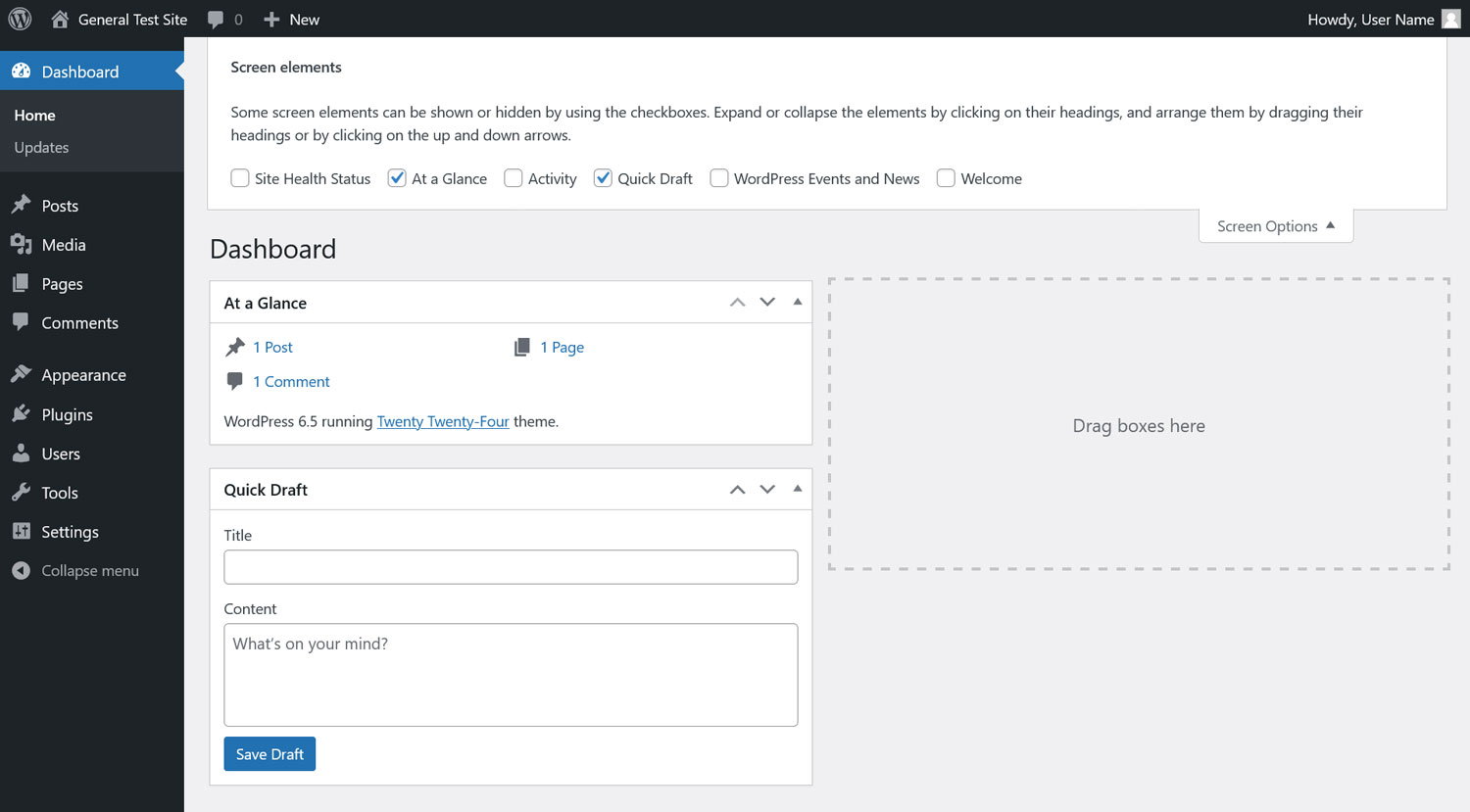
Take note of the aforementioned Screen Options at the top here. They offer a variety of options for enabling and disabling widgets that show up in this screen. In addition, you can move around the page content via drag-and-drop.
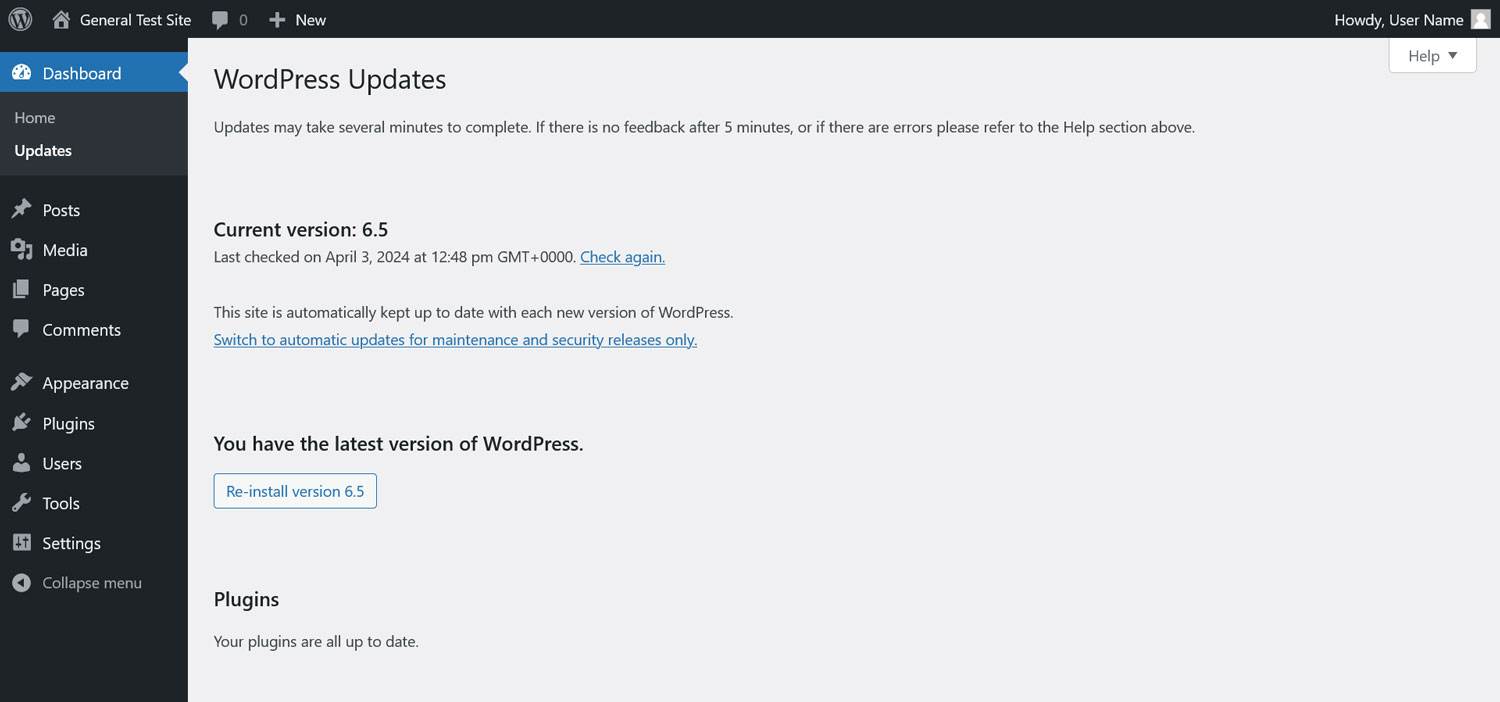
You’ll also want to keep an eye on the Updates submenu on the left. While WordPress can update automatically, whether it does so depends on your settings. Therefore, it’s important to check every once in a while to make sure everything is up to date.
Outdated WordPress installations or add-ons can be a major security risk. Don’t forget to back up your site before every update!