Get Started

Key Takeaways
Emulate DNS locally with the Hosts File Trick. Test your site on WP Engine after migrating without changing DNS by editing a file on your computer. Changes are local and reversible, ideal for testing.
Locate WP Engine IP for local domain pointing. Find your WP Engine IP address in the User Portal to configure the hosts file correctly.
Edit Hosts File to match domain with WP Engine IP. Add a line in the hosts file with the format ‘ipaddress domain.com’ to trick your computer into pointing to the desired domain.
Flush DNS cache after editing hosts file. Ensure your machine reads the new entries by manually flushing the DNS cache.
Relaunch browser for hosts file settings to take effect. Restart your web browser to access your website hosted by WP Engine using the domain name as normal.
Contact support for further assistance. WP Engine offers 24/7 support for any additional help needed in setting up or troubleshooting your domain on their platform.
Learn how to view your site on WP Engine without pointing your DNS. Steps to update your hosts file, and steps to flush your DNS on Windows and Mac.
Notice
The hosts file trick works with the WP Engine legacy network by default. The hosts file trick may work with the Advanced Network or Global Edge Security networks if the domain has already been pre-verified by Cloudflare.
Did you know you can test your site on WP Engine after migrating without changing your DNS, just by editing a file on your computer?
When you visit a website your computer saves the server IP address of the domain in the “hosts file”. This speeds up the connection time the next time you request the website from that computer, because it already knows where to look.
By modifying this file, you can trick your local computer into thinking that a domain lives at a different IP address than is actually configured with the DNS host. Best of all, the change is local to your machine only. Meaning no one sees the change but you, and it can be reverted just as easily once you’re done testing.
Locate WP Engine IP
In order to point your domain to WP Engine on your local machine, you will need to know your WP Engine IP address. To find your IP address:
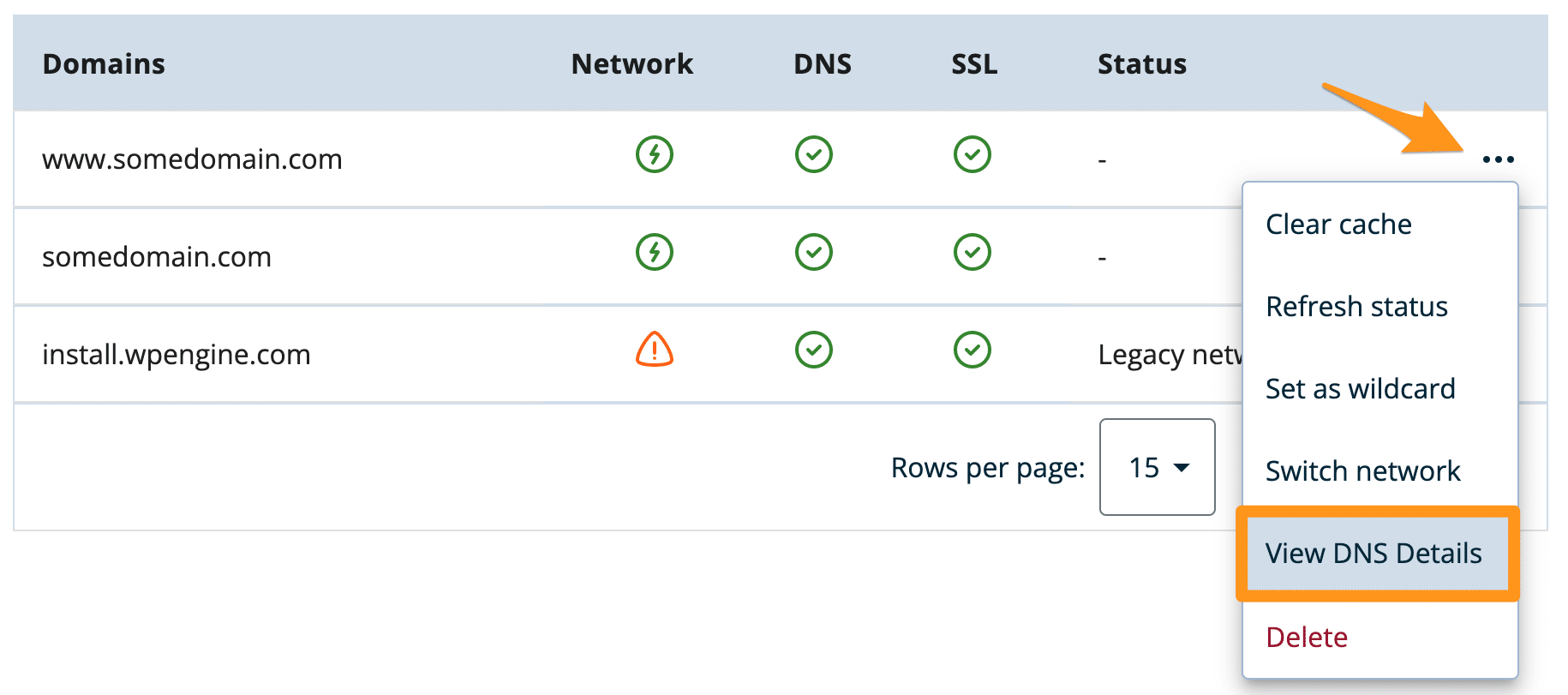
- Log in to the User Portal
- Select the environment name
- Click Domains
- Next to the domain, open the three dot menu icon
- Click View DNS details
WP Engine provides two IP addresses. When testing with the hosts file either IP shown may be used.
Edit Hosts File
Edit the hosts file so that the domain name directly corresponds to the WP Engine IP on the same line. Add a new line to the local hosts section of the host file with the format of: ipaddress domain.com
For example: IP is 123.456.78.90 and the domain is mycooldomain.com
Therefore, add the following line to the hosts file:
123.456.78.90 mycooldomain.com
The steps to editing the hosts file will vary depending on whether you run a PC or a Mac, and also on the version of your operating system. Because of the variations and since there is already good documentation on how to edit the hosts file, we’ve compiled a set of external resources, one of which will fit your particular operating system.
Windows operating systems
Mac operating systems
Windows Documentation
Windows includes a utility called Hosts File Editor Utility, which makes it easy to manage custom host IPs in a user interface.
Learn more about using this utility on Microsoft’s website.
Mac OS X Documentation
On a Mac, there are two helpful tools for editing your hosts file called iHosts and Gas Mask. These applications help you easily manage multiple hosts file entries and edit without entering Terminal or using command line.
Flush DNS
Last, you will need to flush the DNS cache on your machine so it knows to read the new entries in your hosts file instead of the old, saved entries. On many devices restarting will clear this cache, however to ensure the changes are being observed, we recommend following the steps to manually flush your DNS cache.
Steps to flush DNS will vary based on the Operating System of your computer. We have included videos of each below.
Windows 10
Windows 8
Mac OSX
Relaunch Browser
In order for the hosts file settings to take effect, please restart your web browser completely. You can now access your website hosted by WP Engine using the domain name as normal in your browser.
To revert the changes, simply delete the line added to your host file, or comment it out. Then flush DNS and restart your browser.
NEXT STEP: Going live with a domain on WP Engine